Journeys
A journey is a short browser script that runners run on an interval to
answer one question: does this still work, here, now. It is a Journey
spec file under journeys/, reviewed and rolled out like any layer; the
Journeys pages show how the runners fare with it and keep the evidence of
failed runs. What a journey contains and how runners pick it up is
described in Synthetic journeys.
1. See how the journeys fare
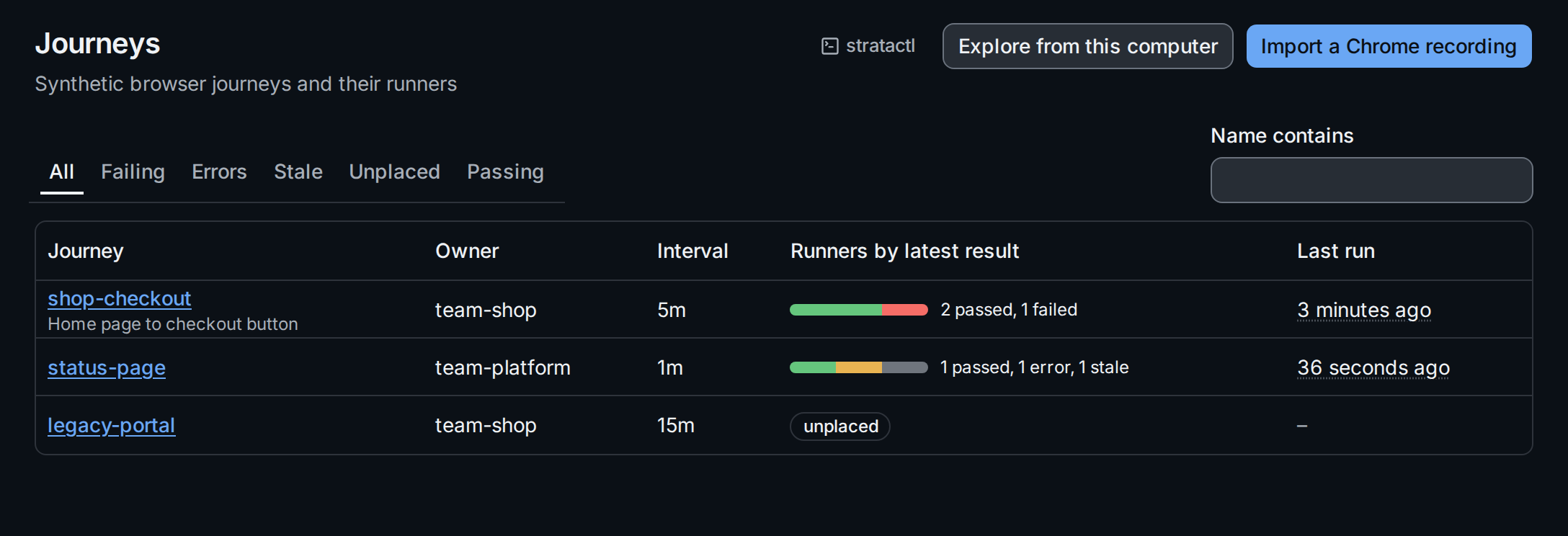
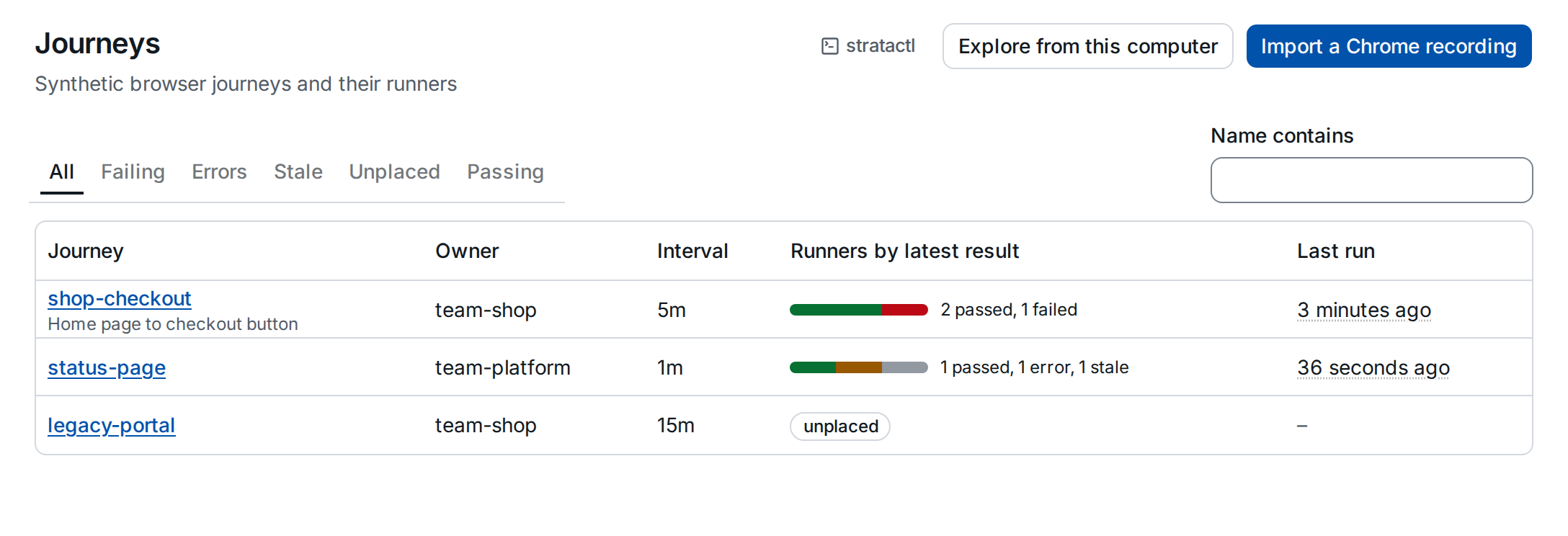
Each row shows a journey with its owner, interval and the runners its selector matches, coloured by their latest result ②: passed, failed (the target is broken) or error (the journey or the runner is broken) (results). A runner that has not reported for a while counts as stale. A journey whose selector matches no runner is unplaced ③ and runs nowhere. The tabs ① list only failing, erroring, stale, unplaced or passing journeys; Name contains narrows the list by name.
The same list is stratactl journey list [--status S]
(Journeys and tools). Alerts are
not raised here: the results are exported as metrics to the alerting you
already have.
2. Start a journey from a Chrome recording
Record the flow in Chrome DevTools (Recorder panel), export it as JSON and choose Import a Chrome recording ⑤: the importer turns it into a Journey file in one of your draft change sets. The whole way, from the recording to a journey that passes, is Record a journey in Chrome.
3. Explore from this computer
Before a journey is reviewed, you can try it in a browser at a runner's network position. Explore from this computer ④ lends your own computer as an exploration runner that only you can use:
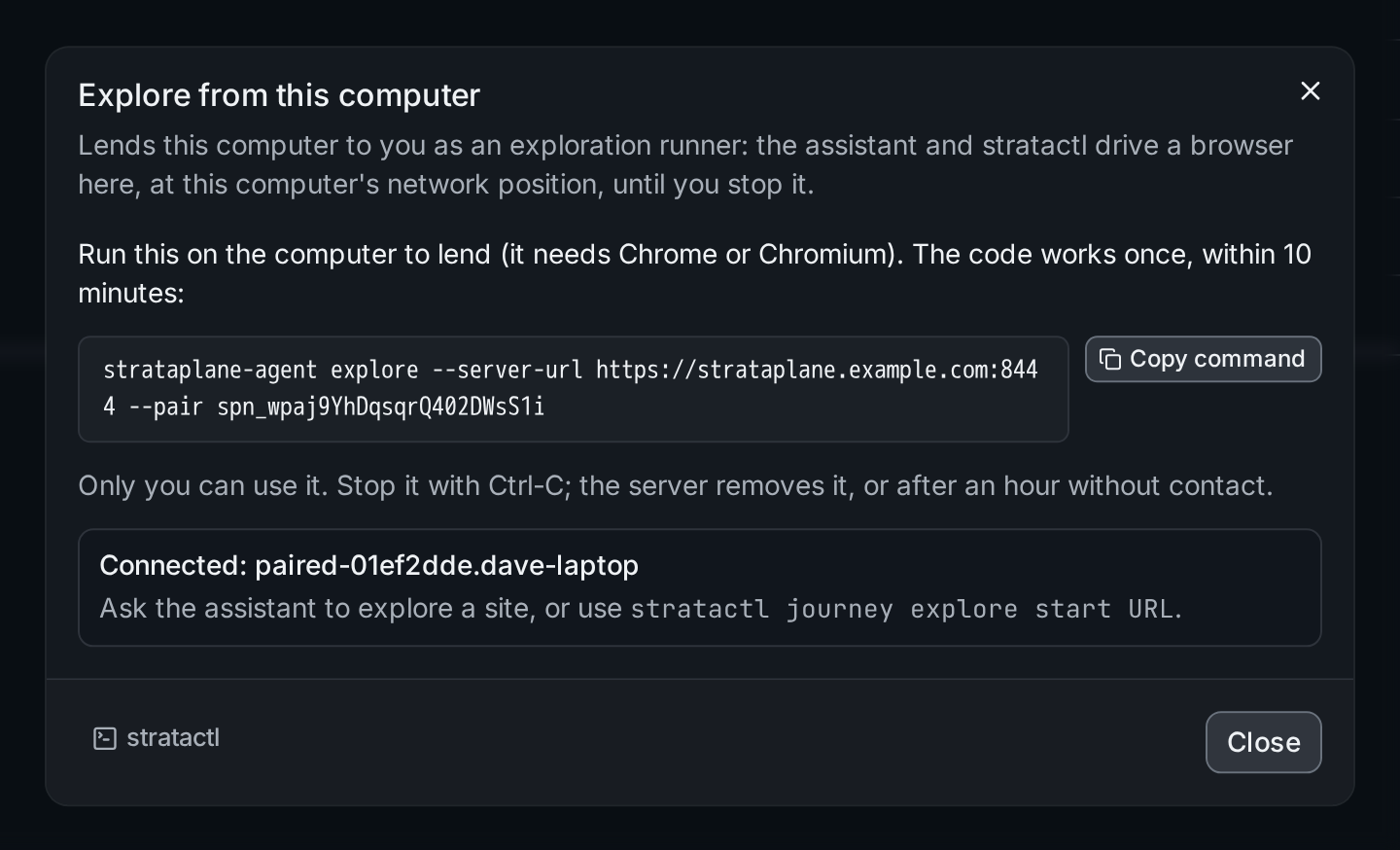
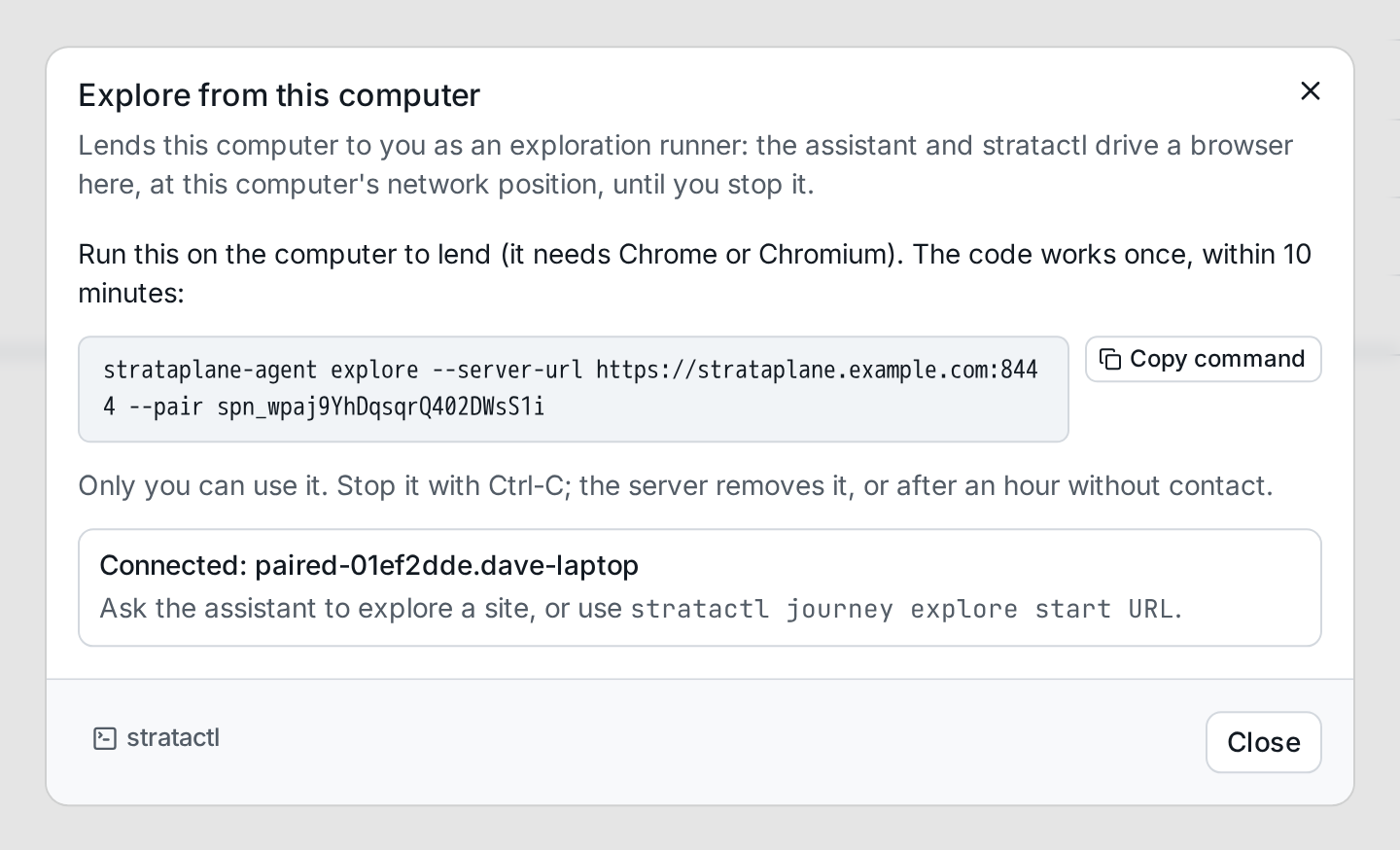
Run the command ① on the computer to lend; it needs Chrome or Chromium,
and the code in it works once, within 10 minutes. Once the runner checks
in, the dialog shows it ②. Then ask the assistant to explore
the site, or use stratactl journey explore start URL. Stop the process
with Ctrl+C when you are done. Pairing needs a role
that grants host.explore; how sessions, trial runs and shared
exploration runners work is described in
Exploration. The command is
stratactl journey explore pair.
Without an exploration runner, run the journey locally with
strataplane-agent journey run (Local runs).
4. Open a journey
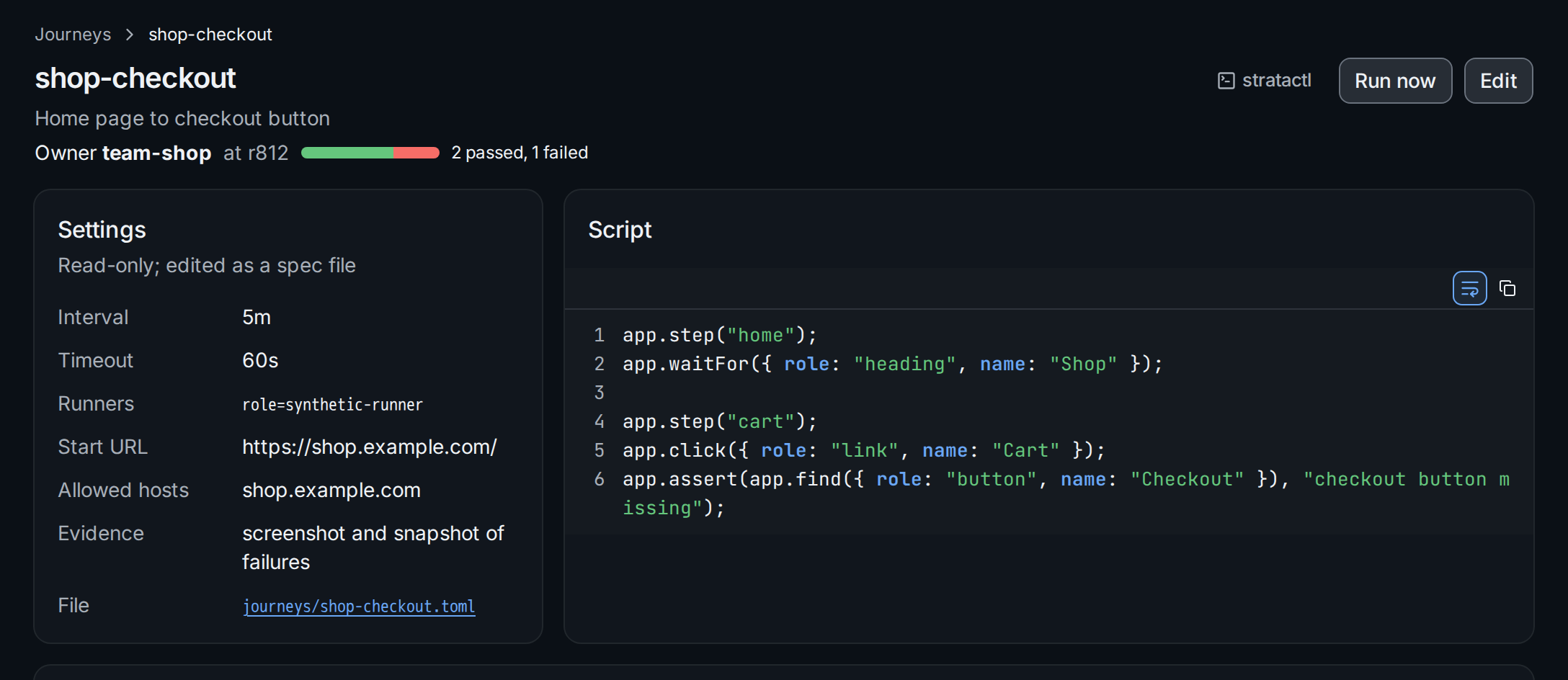
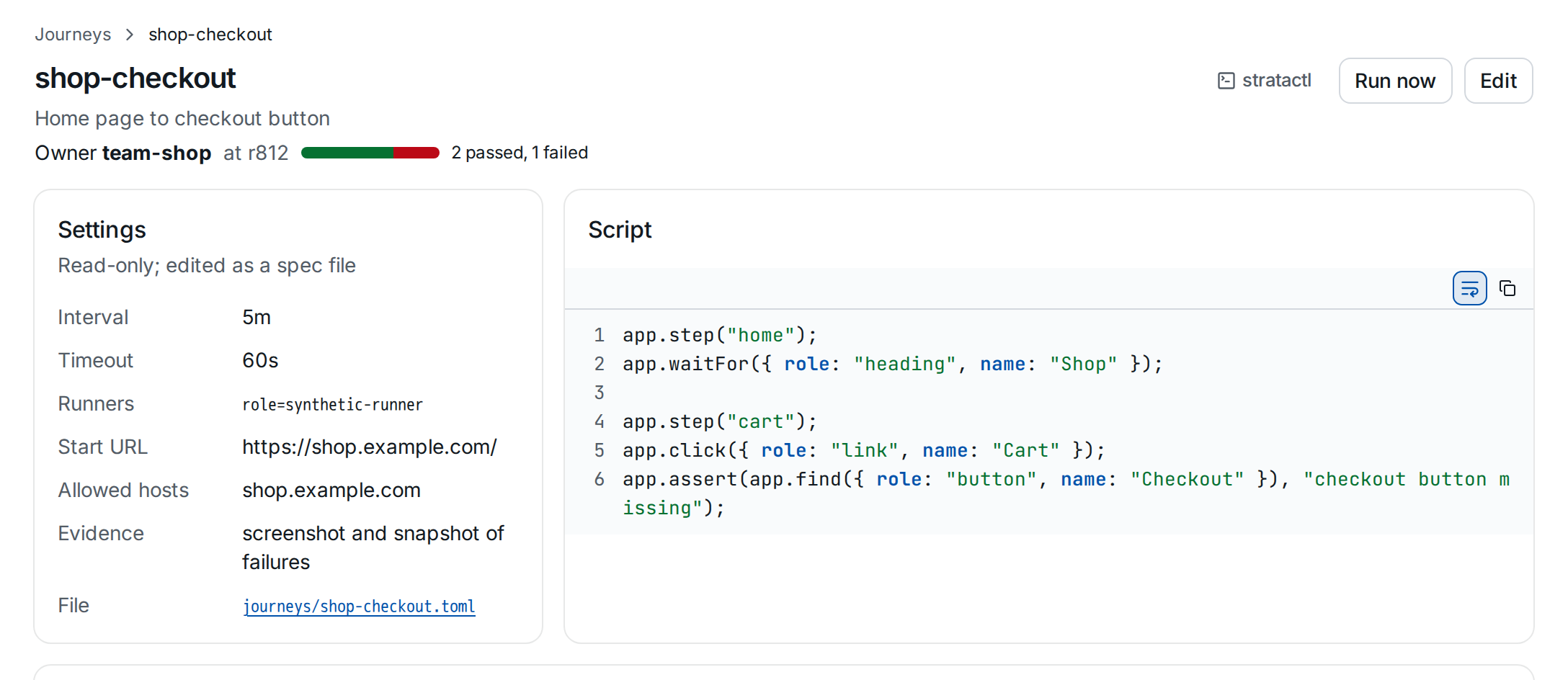
The settings ① and the script ② are read-only: a journey is changed as a spec file. Edit ④ opens the file, from where you edit it in a draft change set. Below them, the Runners table shows each runner's latest result:
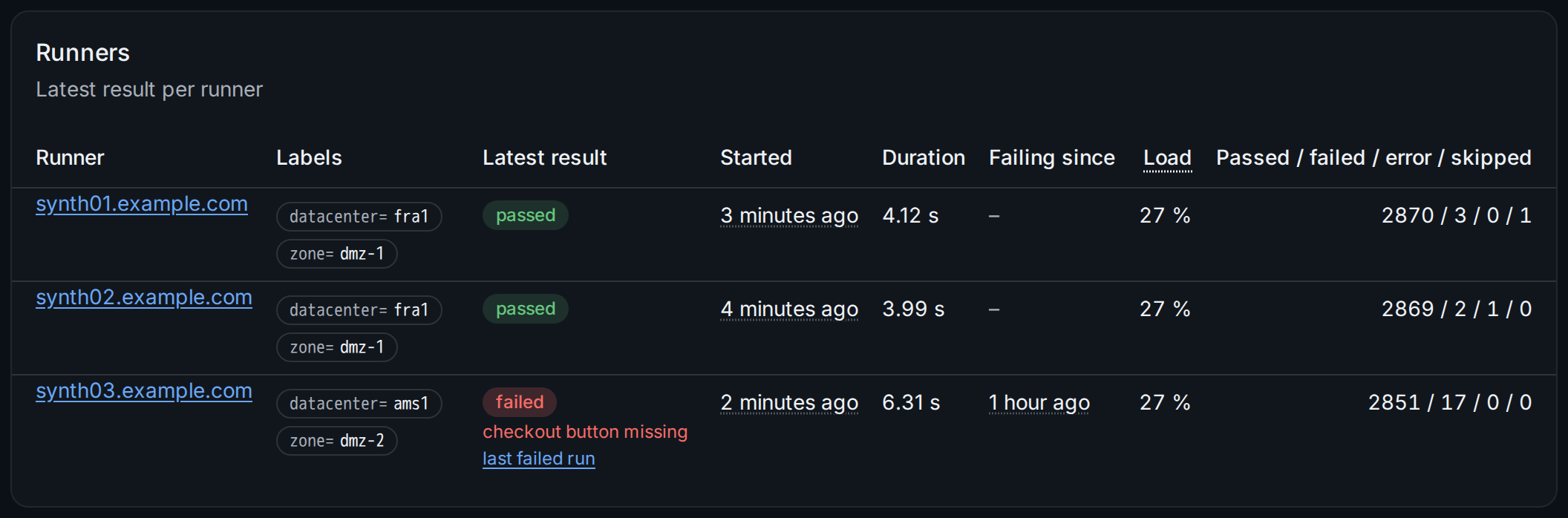
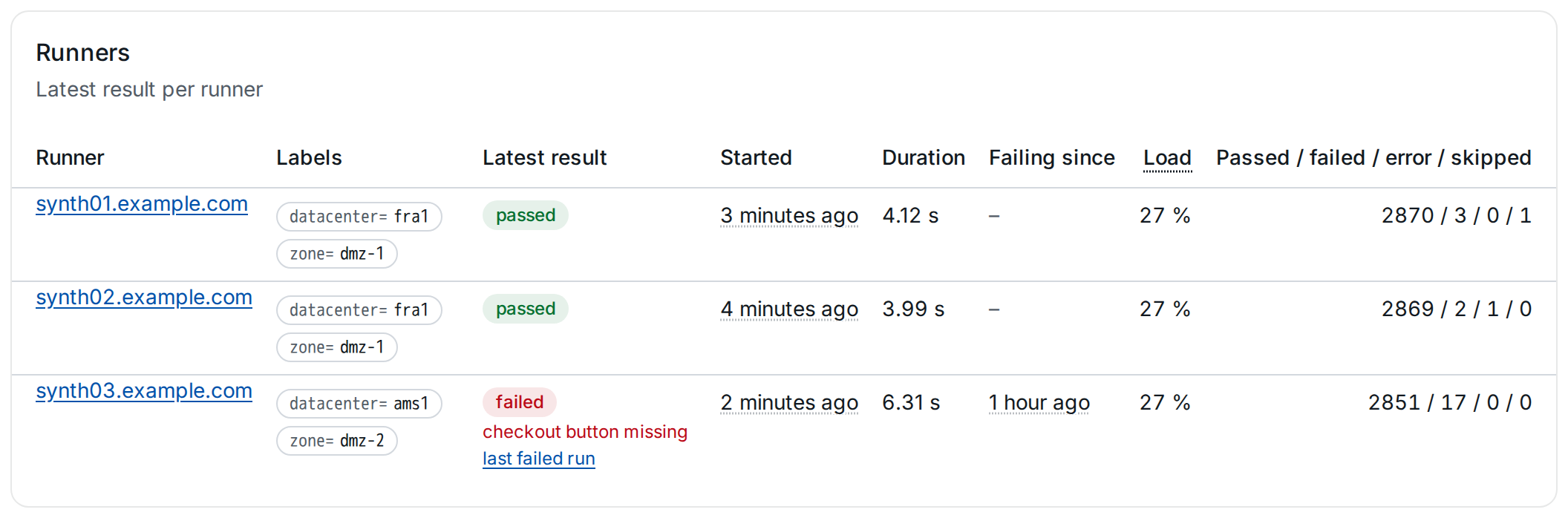
- A failing runner links its last failed run ①, and Failing since ② says how long the failure lasts.
- Load ③ is the runner's worst-case load: the sum of timeout ÷ interval over its journeys, divided by its concurrency. Above 100 % runs that would overlap are skipped, and the page warns about the runner (Runners and delivery).
- The counters ④ count the runs per result, skipped ones included.
stratactl journey show NAME prints the same.
5. Run it now
Run now ③ runs the deployed journey once on its runners, now: on all of them, or on one you pick ①.
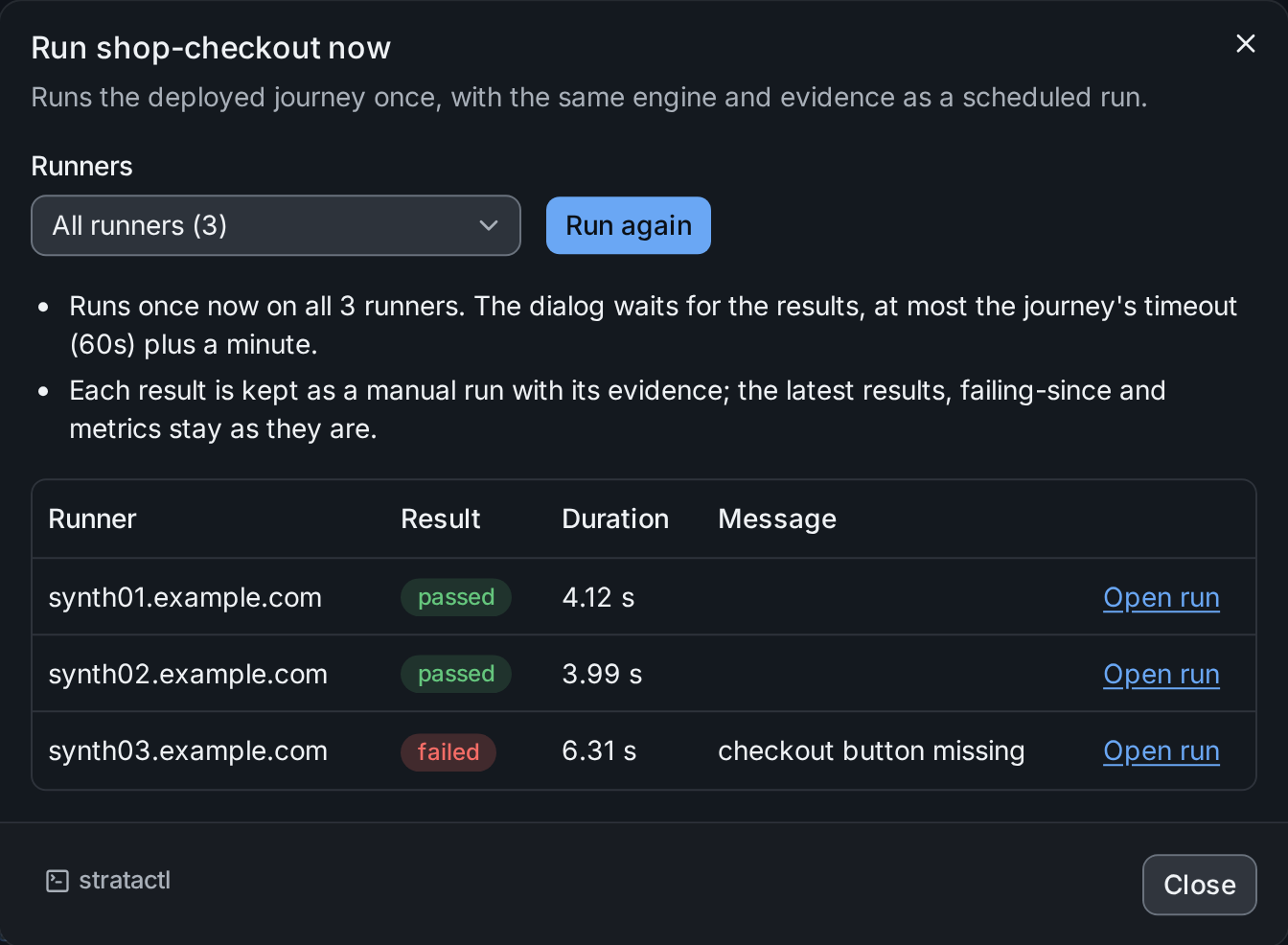
The dialog waits for the results ③ and links each run. A manual run is
kept like a scheduled one, with the user who triggered it, but it leaves
the latest results, failing-since and the metrics alone ②: a retry
neither clears nor raises an alert. It needs host.explore on each runner
and is audited (Manual runs). The
command is stratactl journey run NAME [--runner R].
6. Find a run
The Runs table lists the kept runs, newest first:
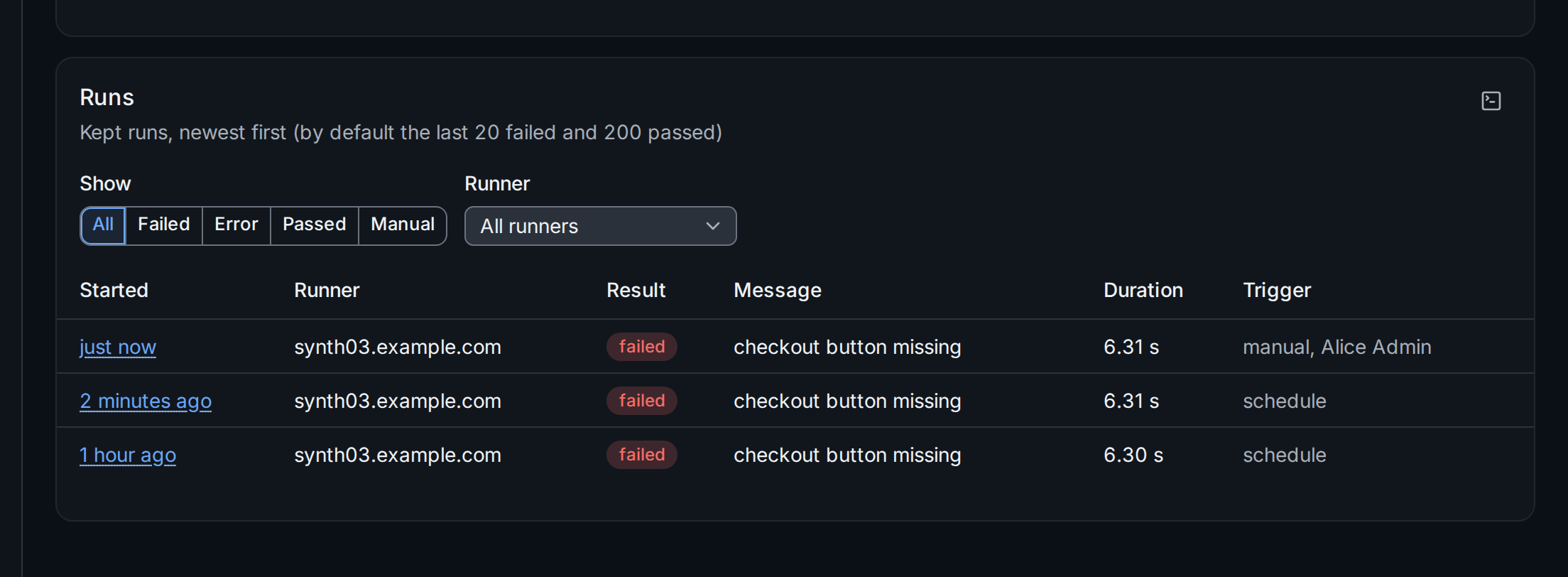
Show ① narrows the list to failed, error, passed or manual runs, and
Runner ② to one runner. The Trigger column ③ says whether a run
was scheduled or manual, and for a manual run who started it. Which runs
are kept, and for how long, is described in
Runs and evidence. With
stratactl: journey runs NAME.
7. Read a failed run
Open a run from the list, from the Runners table or from the Run now dialog:
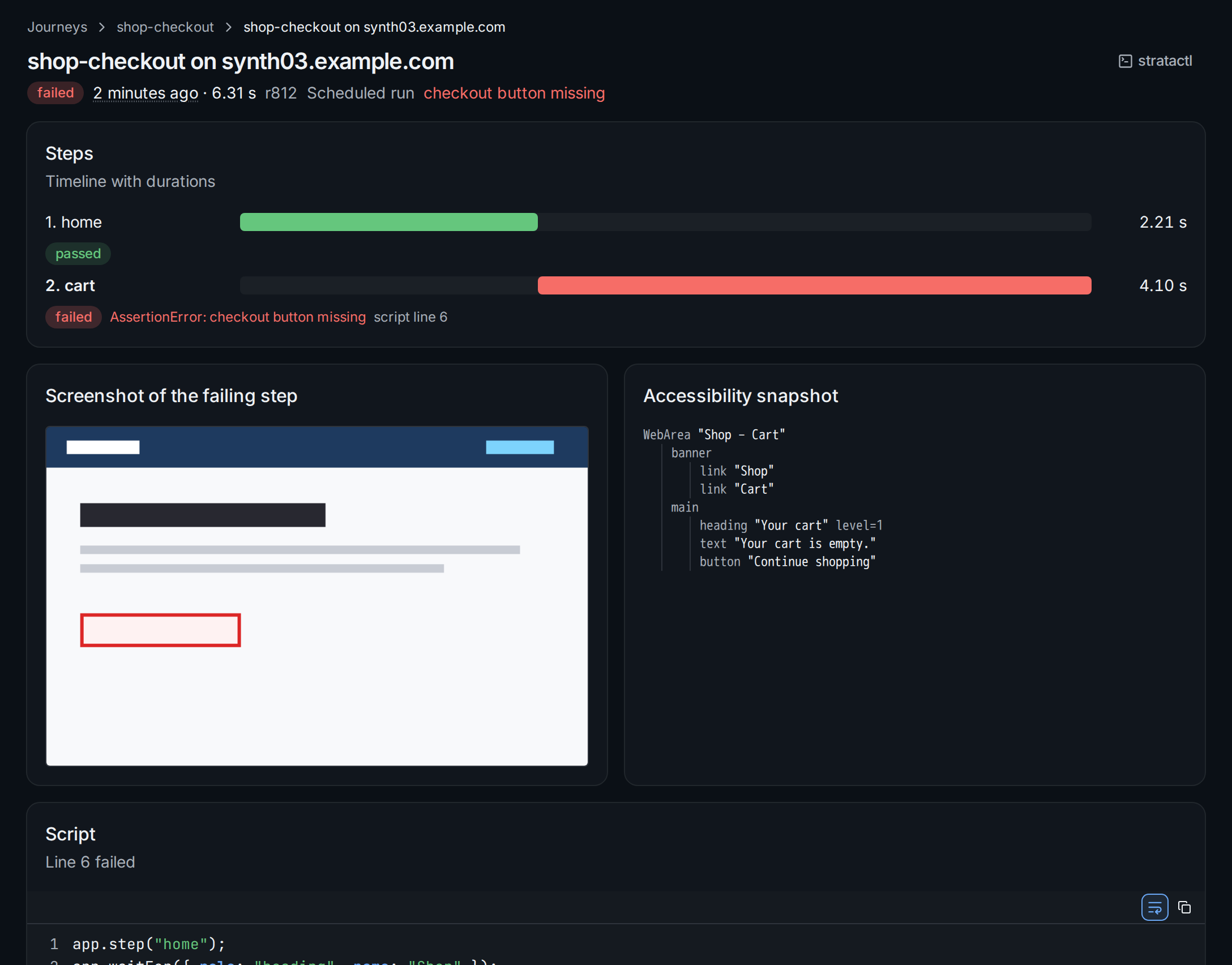
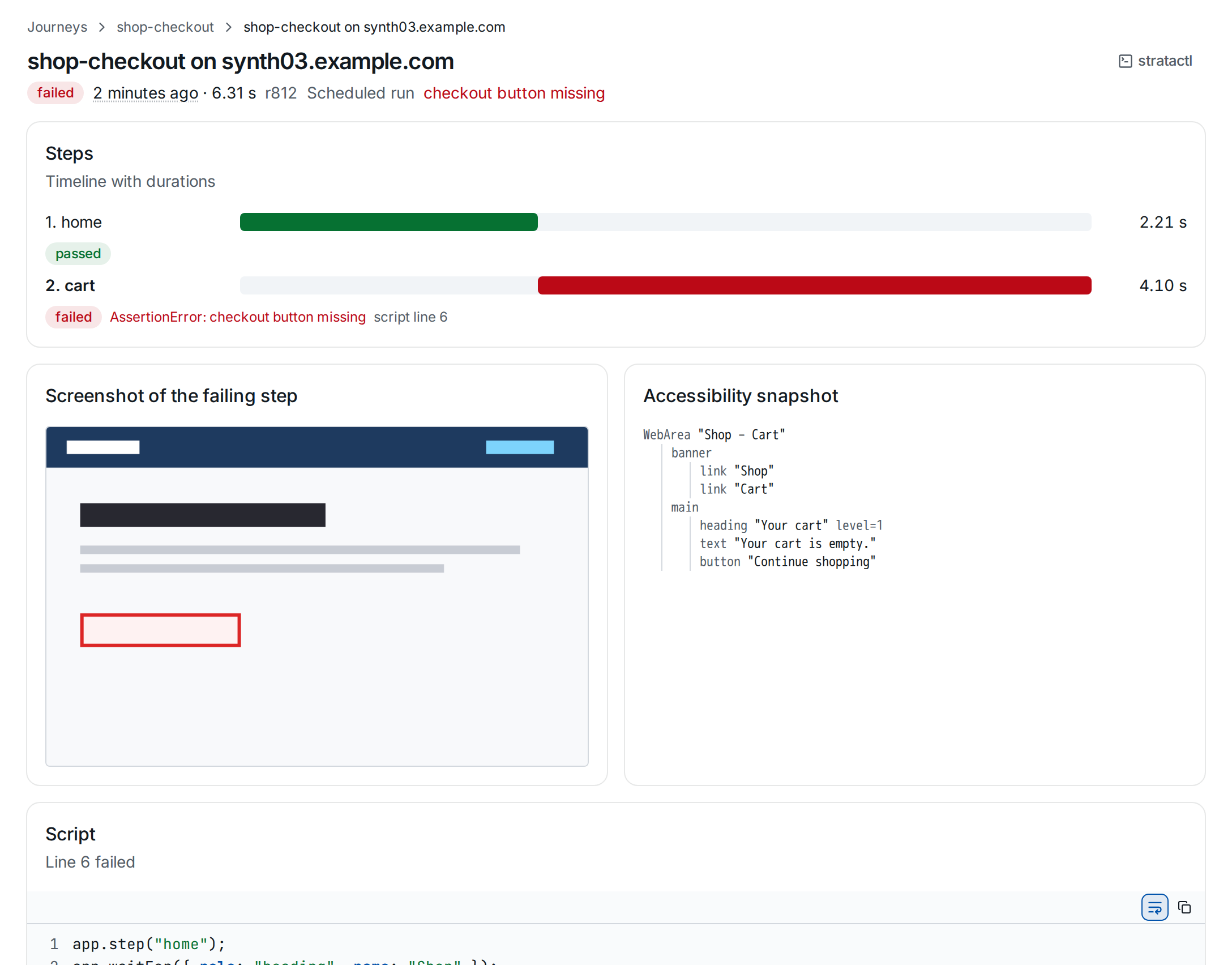
The header gives the result, the start, the duration and the revision,
and says whether the run was scheduled or, for a manual run, who
triggered it. The step timeline shows each step with its duration and
result; the failing step ① carries the error and the line of the script
it failed on. For a failed run the runner keeps the screenshot ② and the
accessibility snapshot ③ of the failing step: the snapshot names the
roles and names the page offered, which is what a selector such as
{ role: "button", name: "Checkout" } looks for. A journey with
evidence = false keeps step logs only.
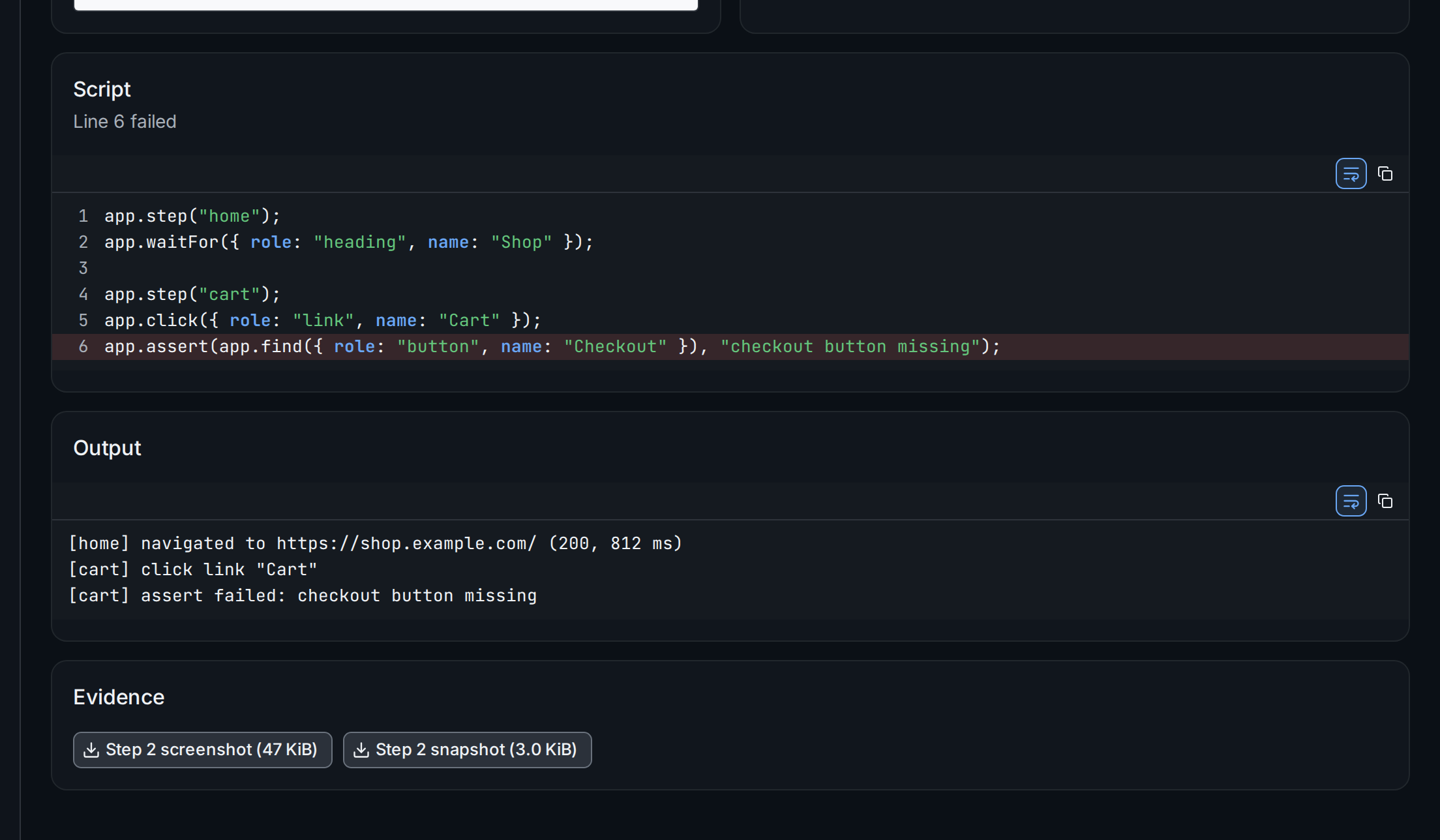
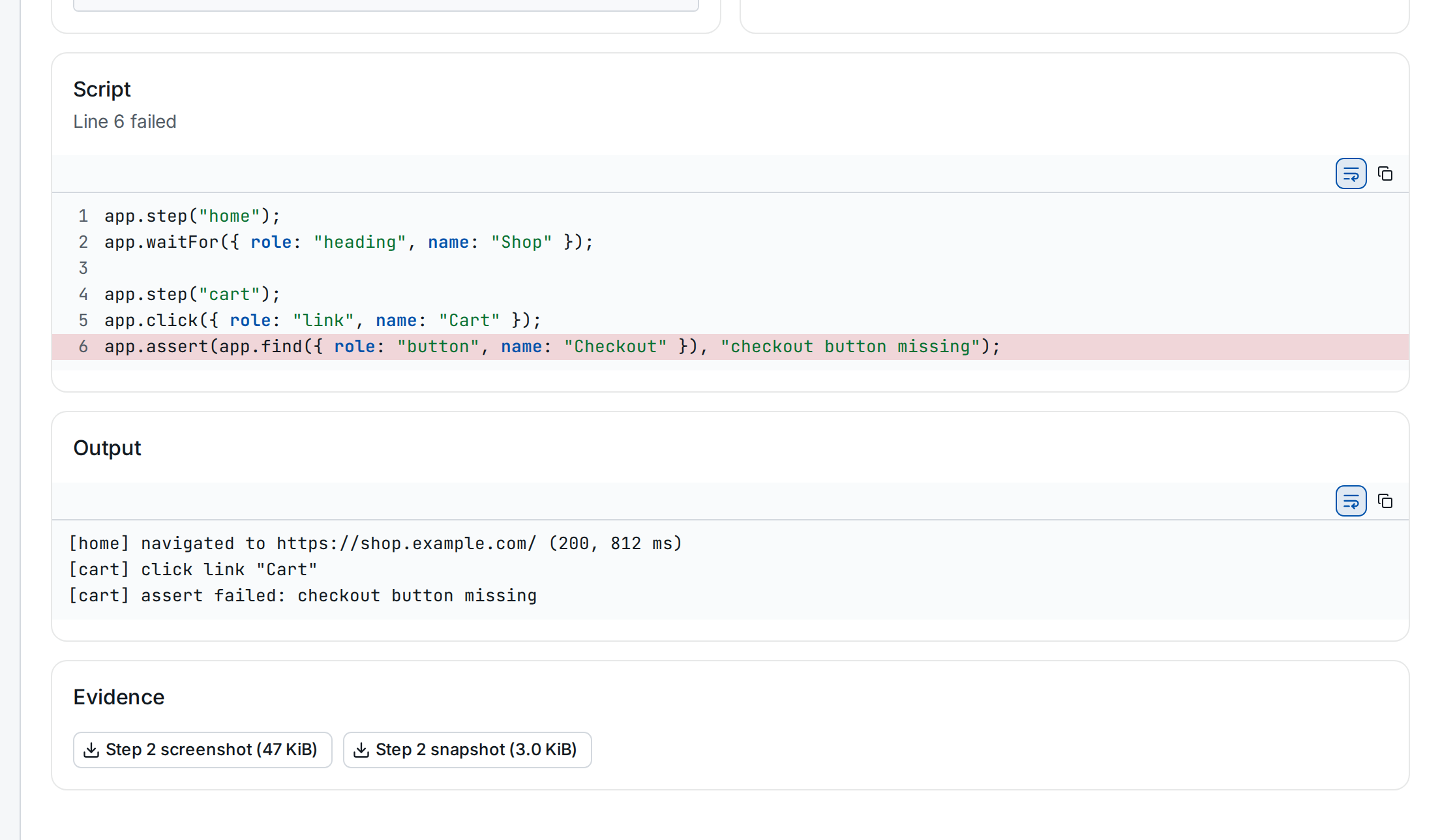
The script ① is the one of the revision the run used, with the failing
line marked; the output lists what the script printed and the requests
the host guard blocked. The evidence buttons ② download the screenshot
and the snapshot; stratactl journey run-show RUN --evidence DIR does the
same. To repair the journey, edit its file; the assistant can
read the failed run's evidence for it
(Assistant).