Browse the spec
Spec › Files shows the spec tree at a revision: every layer, bundle,
route, policy, secret, placement, journey and settings file
(spec format). Use it to find out what
applies to a host, who owns a file and how it looked before a change. The
same tree is what stratactl spec pull [--revision N] writes into a
working copy (Working copy).
1. Find files
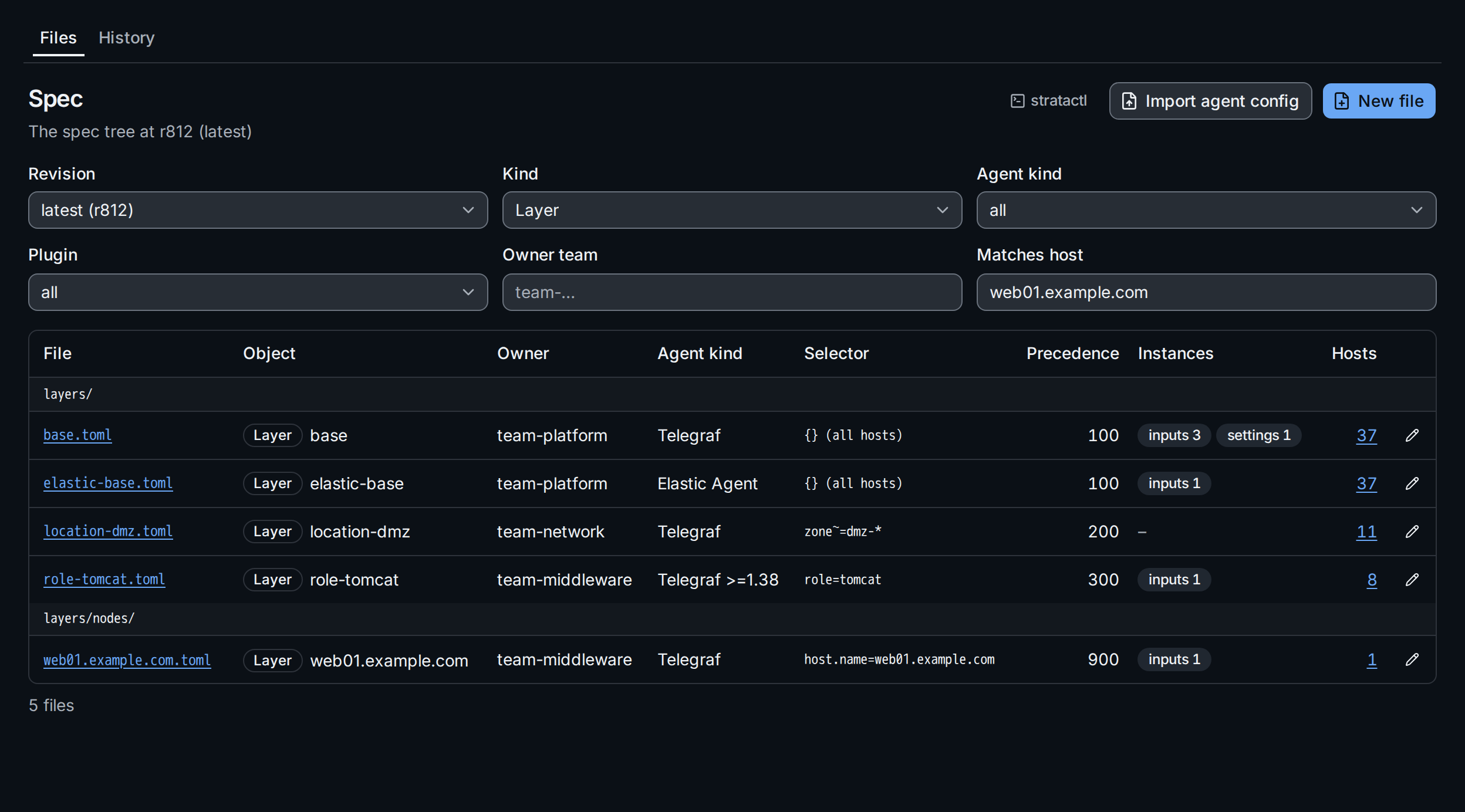
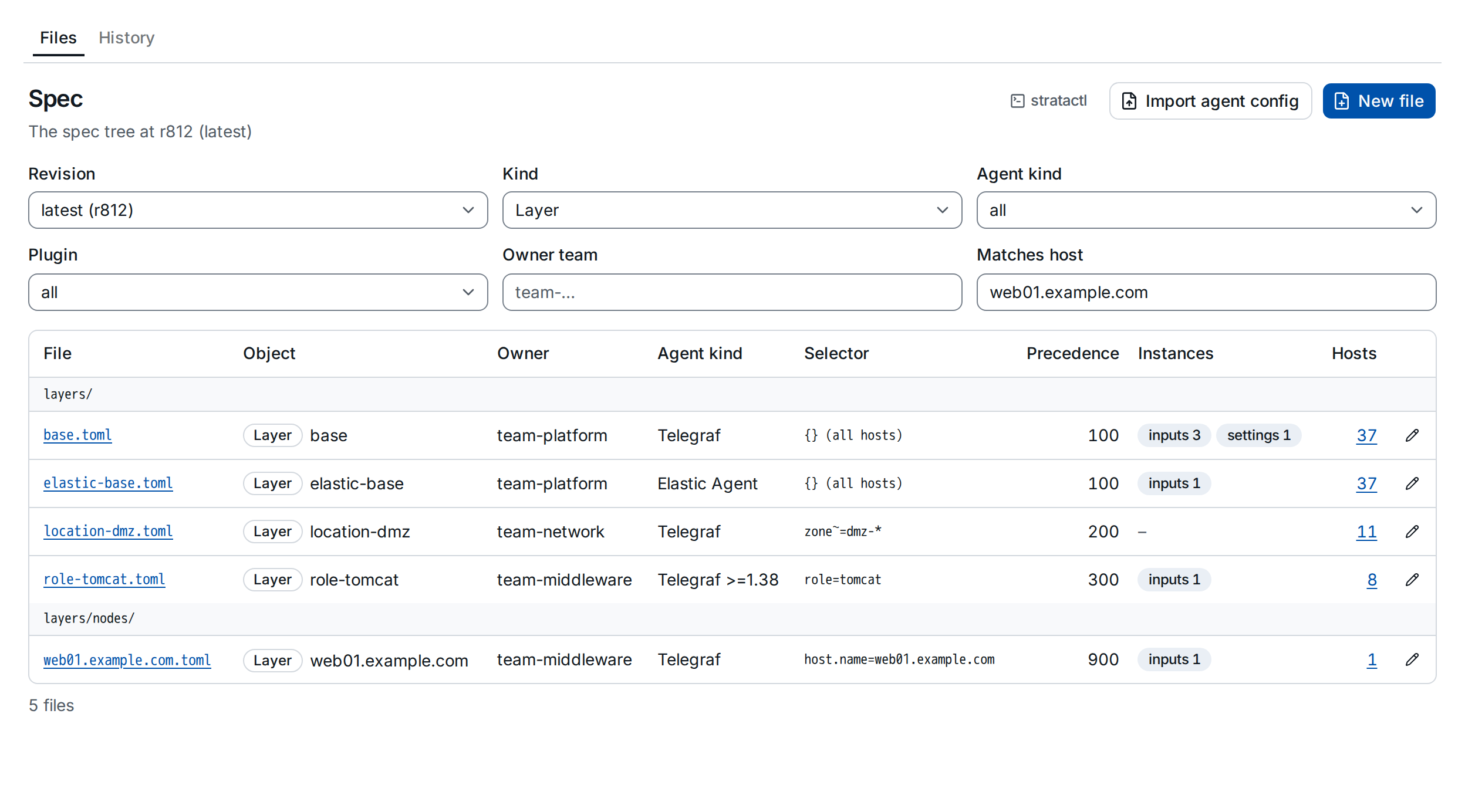
The filters ① narrow the tree:
- Revision shows the tree as it was at an older revision; the default is the latest.
- Kind, Agent kind and Owner team match the file's object.
- Plugin keeps the layers and bundles with an instance of that plugin
(
inputs.procstat, say). - Matches host keeps the files whose selector matches a host name.
Together with Kind Layer, this lists every layer that contributes to
that host's config; which value wins is the job of
explain(Editor).
For layers and bundles, Instances ② counts the plugin instances per
section; instances a layer removes (ensure = "absent") are not counted.
Hosts ③ is the number of hosts the selector matches and links to them
under Fleet › Hosts. The pencil at the end of a row opens the file in a
draft change set.
2. Read a file
Click a file name. The header shows the object, its owner, agent kind, precedence and selector with the number of matching hosts; TOML shows the file in its canonical form.
For layers and bundles, Structured ① lists what the file adds: the
layer's settings, then each plugin instance ② with its plugin, the alias
Telegraf gets, and its options. An instance the layer removes is marked
ensure = absent ③.
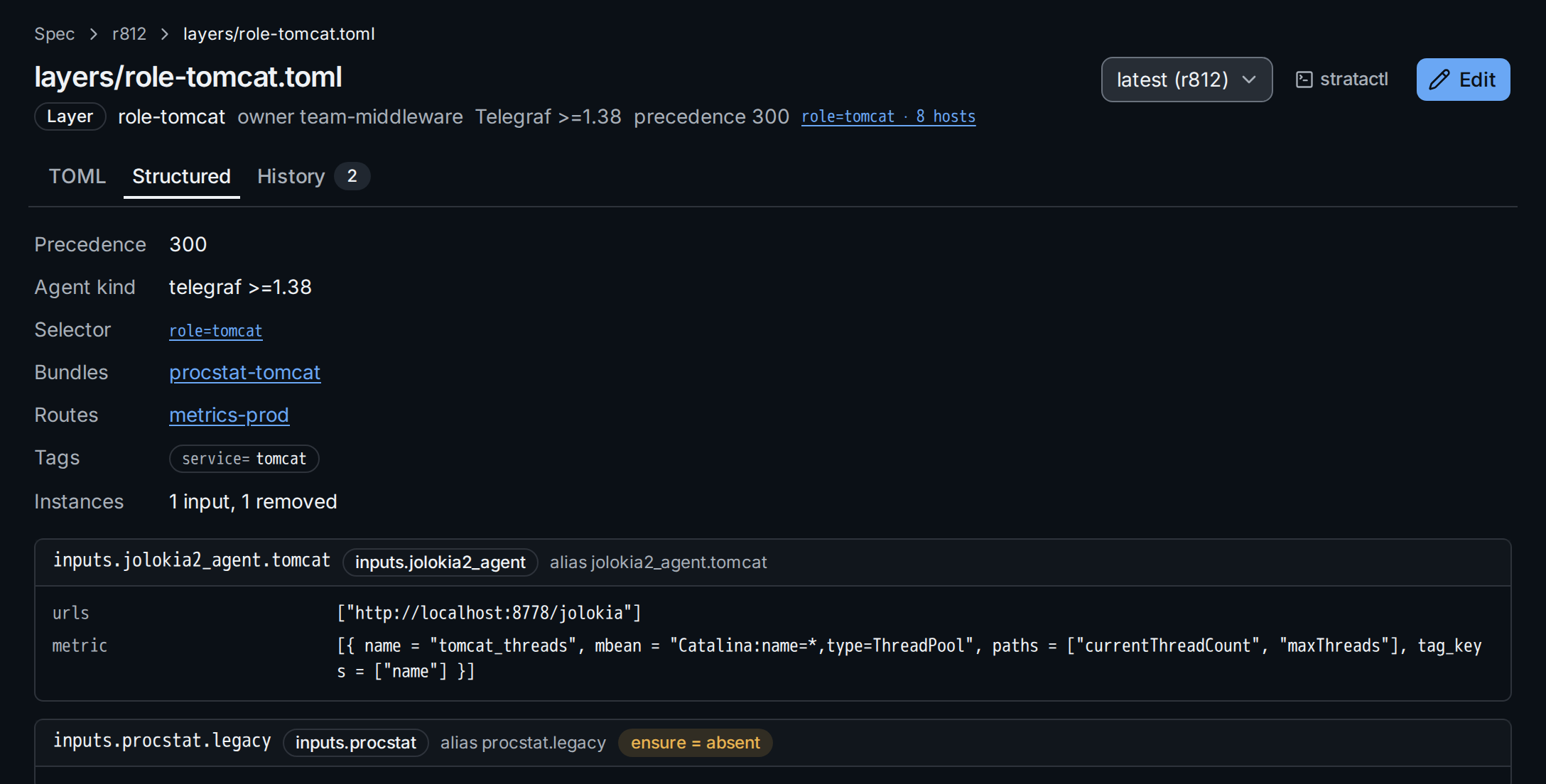
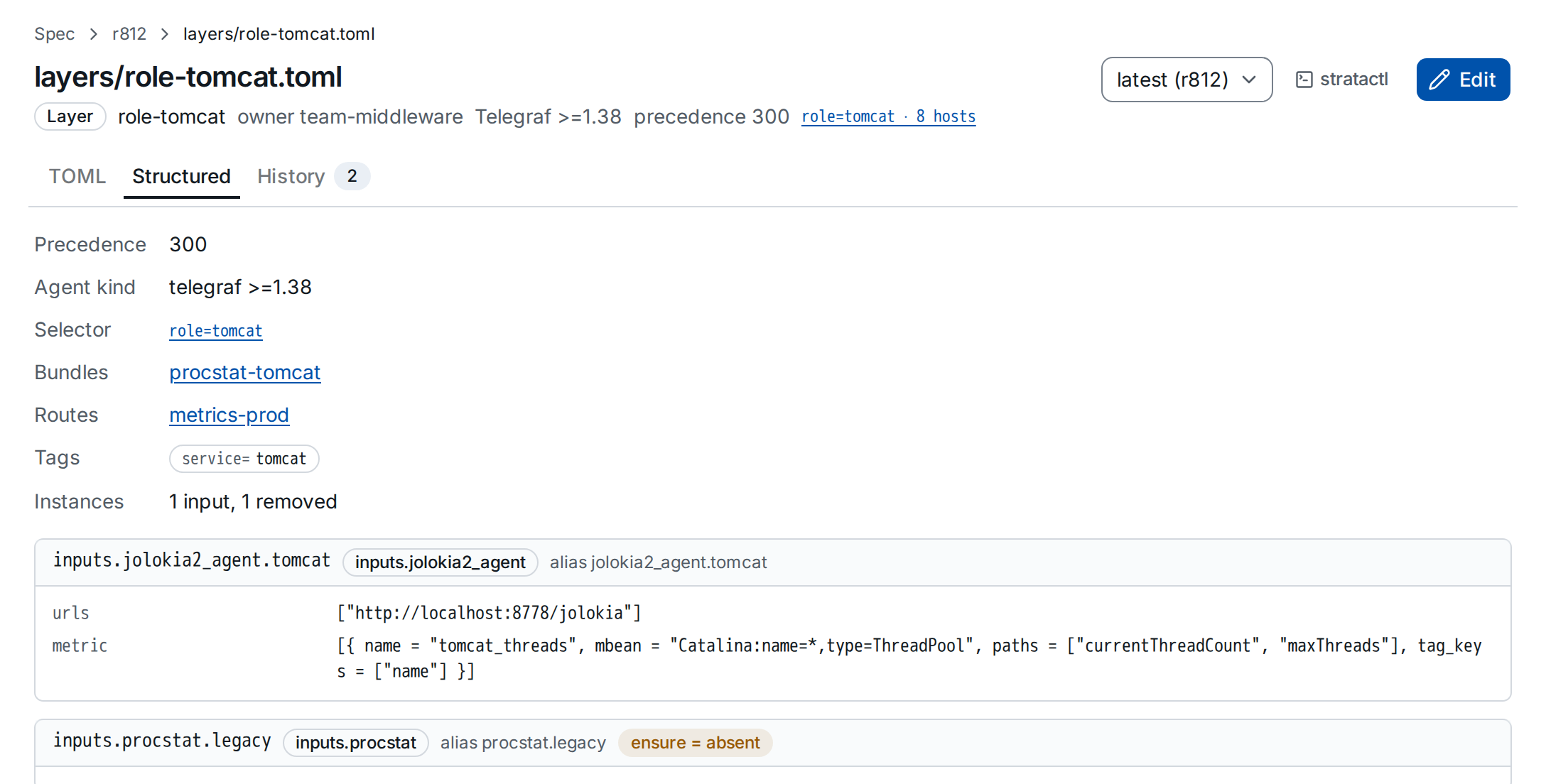
layers/role-tomcat.toml. ① the file views, ② an instance with its plugin, alias and options, ③ an instance removed by this layer.A merge directive appears next to the option it applies to ①. Here the
node layer of web01 appends to the namepass list of the bundle instead
of replacing it (merge semantics):


append directive ① on an option of the node layer for web01.3. Look at older versions and restore one
History lists the revisions that changed the file, with their change set, author and message. Diff compares a revision with the one before it (History); on the revision that added the file, View shows the file as it was added. Restore ① takes that version back.


layers/location-dmz.toml. ① restore the version of r800.To read the file at another revision, choose it in the revision picker ① next to the stratactl button, or click a revision in the history. The header says which revision you are looking at ②.
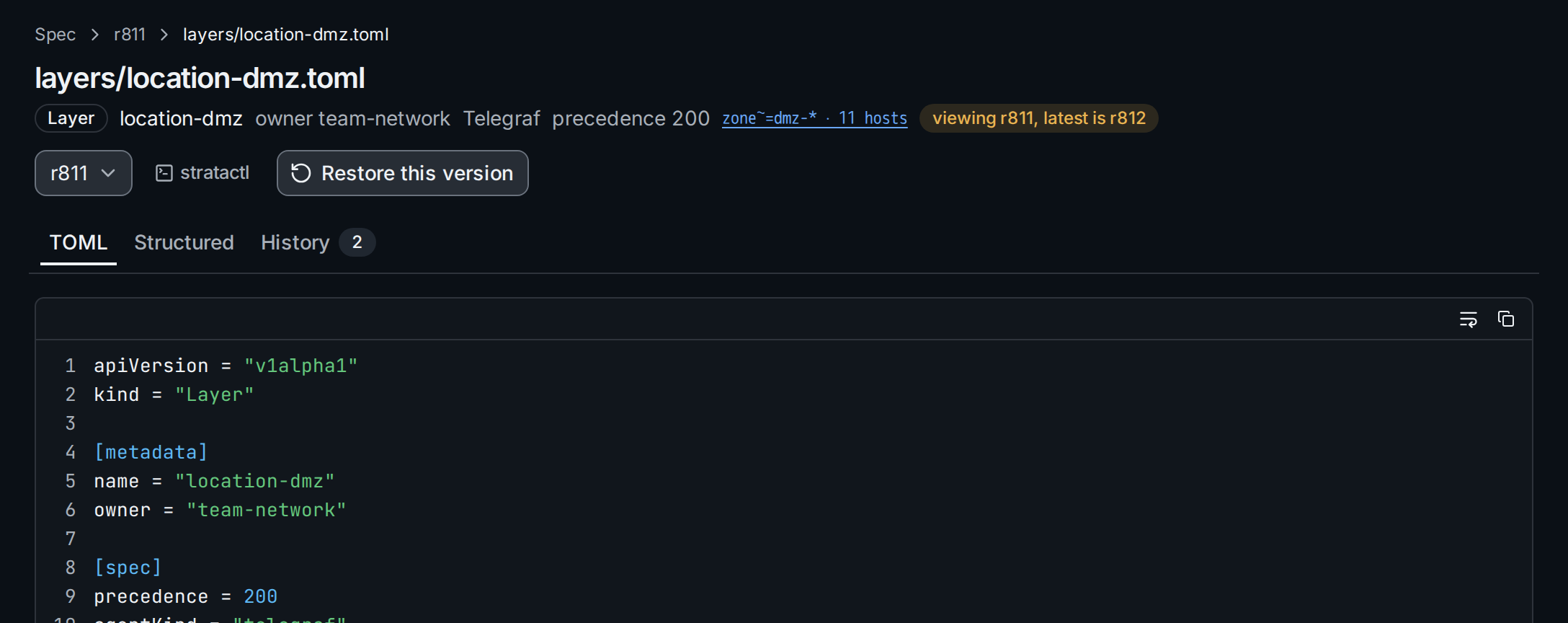
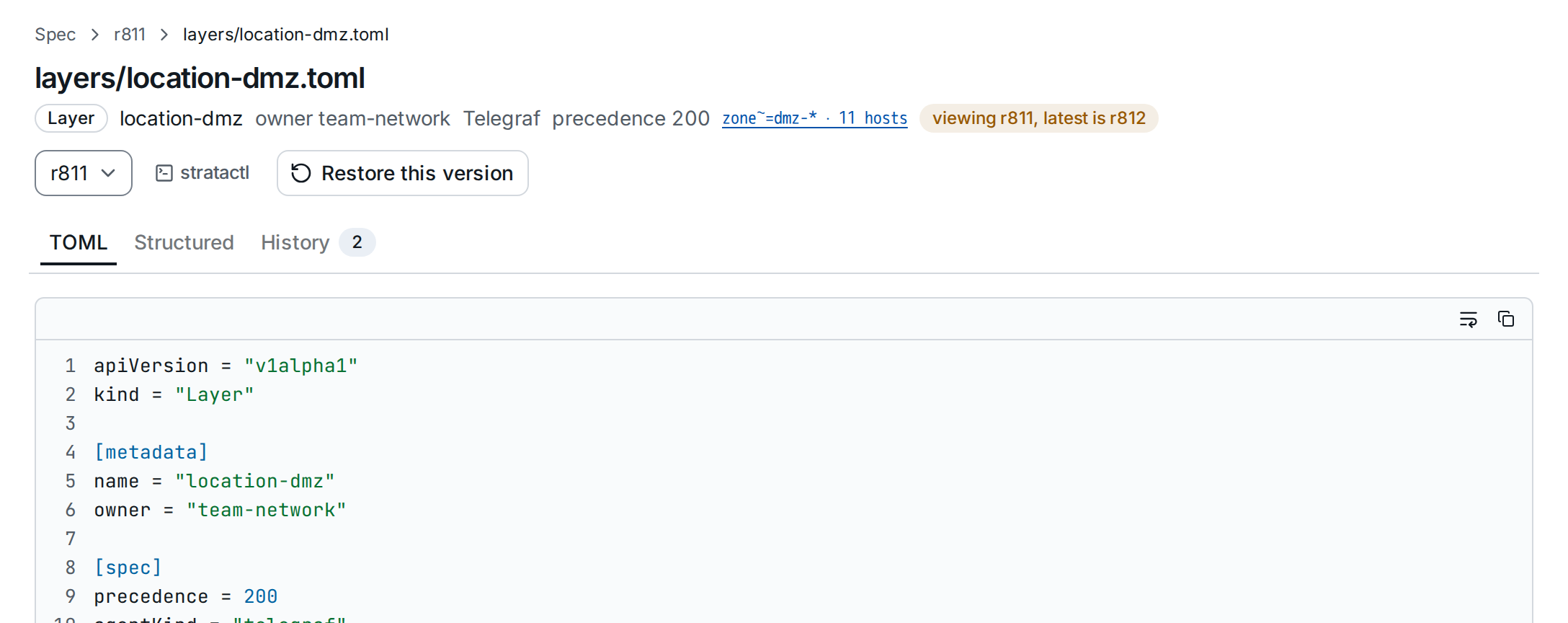
layers/location-dmz.toml at r811. ① the revision picker, ② the revision shown, ③ Restore this version.Restoring changes nothing directly: Restore this version ③ or
Restore writes the old content into a draft change set (one of your
drafts or a new one) and opens the editor. The change then goes through
validation and review like any other edit. From a working copy,
stratactl restore --revision N PATH does the same, also for deleted
files, and stratactl log PATH lists the file's history.
4. Start a new file
New file creates a file from the template of its kind, in one dialog:
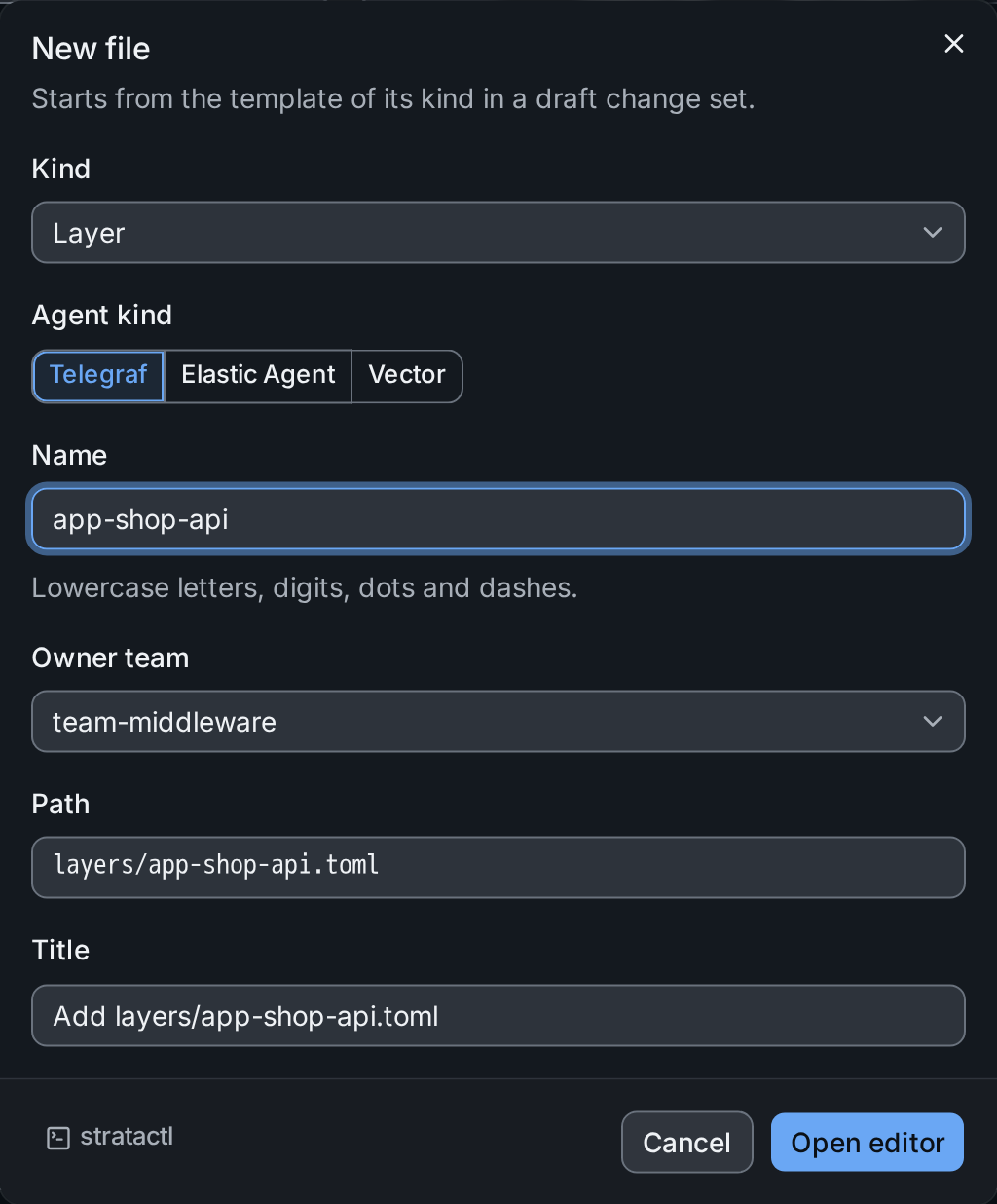
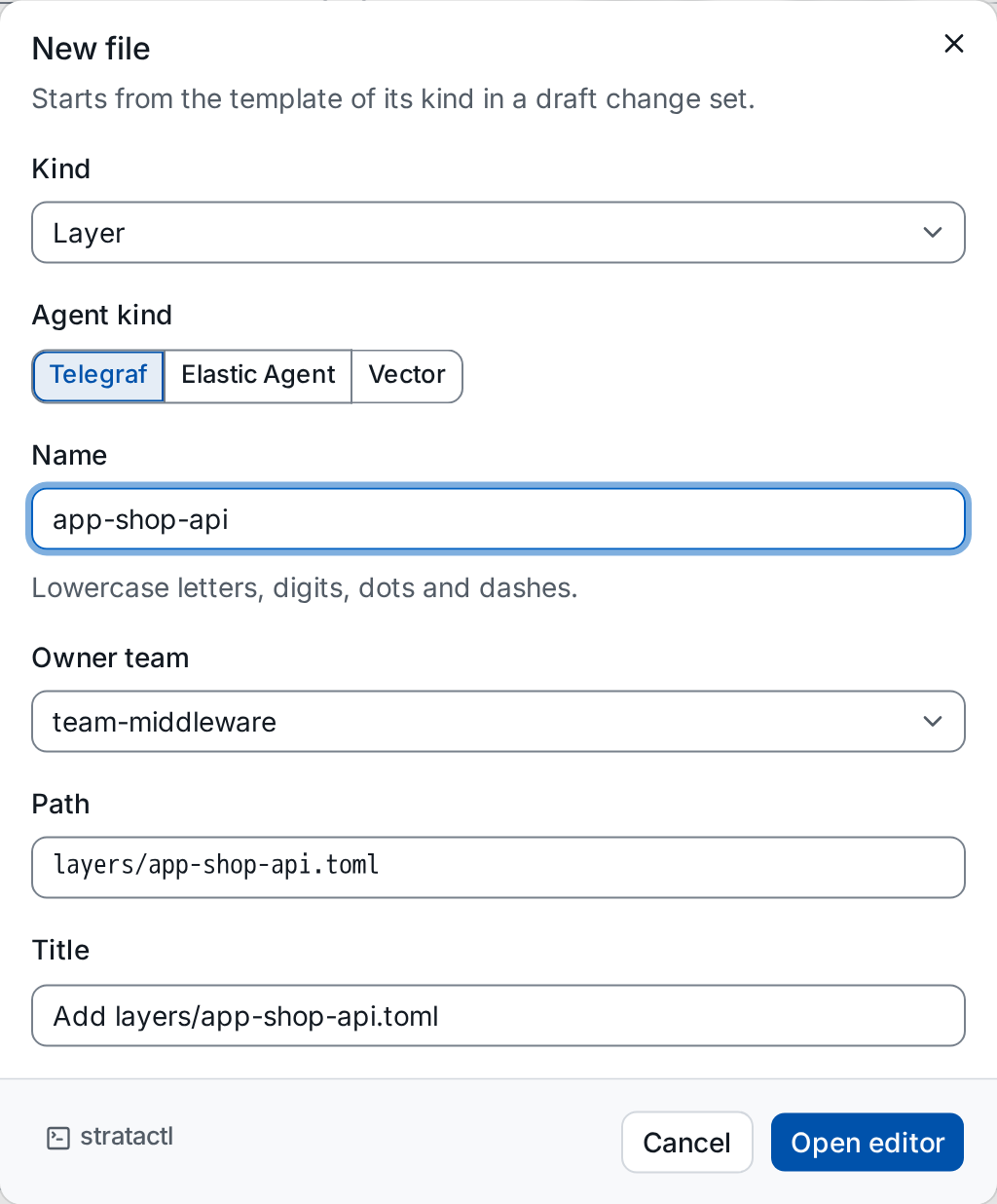
- Choose the Kind ①. For layers, bundles, routes and rollout policies choose the Agent kind ②; it starts on the kind with the most agents in the tenant.
- Enter the Name: lowercase letters, digits, dots and dashes (for a
Secret: letters, digits and
_). The Path ③ follows the name in the kind's directory; change it if you keep files in subdirectories. A path that exists is refused: edit that file instead. - Choose the Owner team.
- Pick one of your drafts as the Change set, or give the new one a Title ④.
Open editor adds the file to the draft and opens it in the
editor. To bring in an existing telegraf.conf or Vector config
instead, use Import agent config (Import an agent config).