Record a journey in Chrome
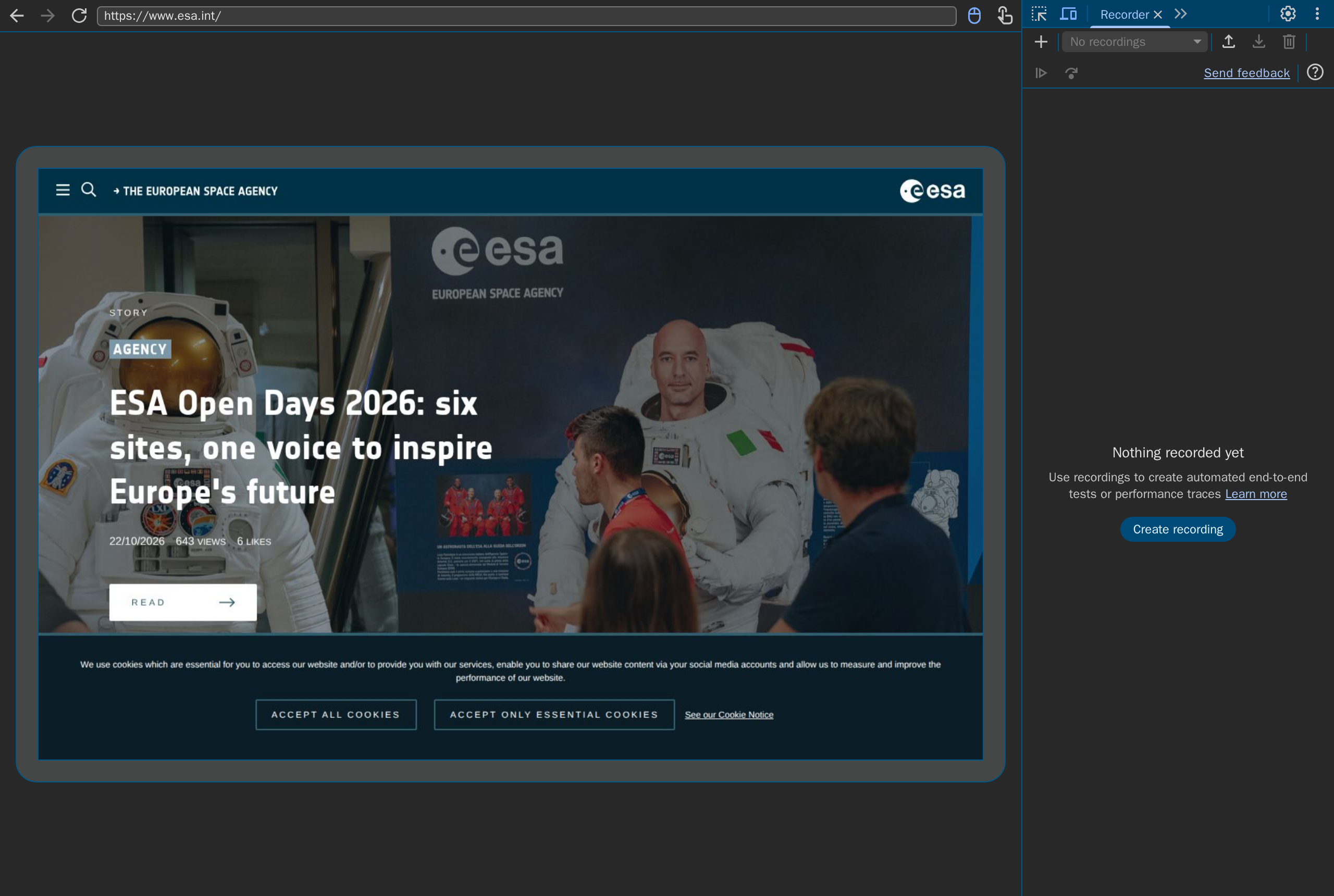
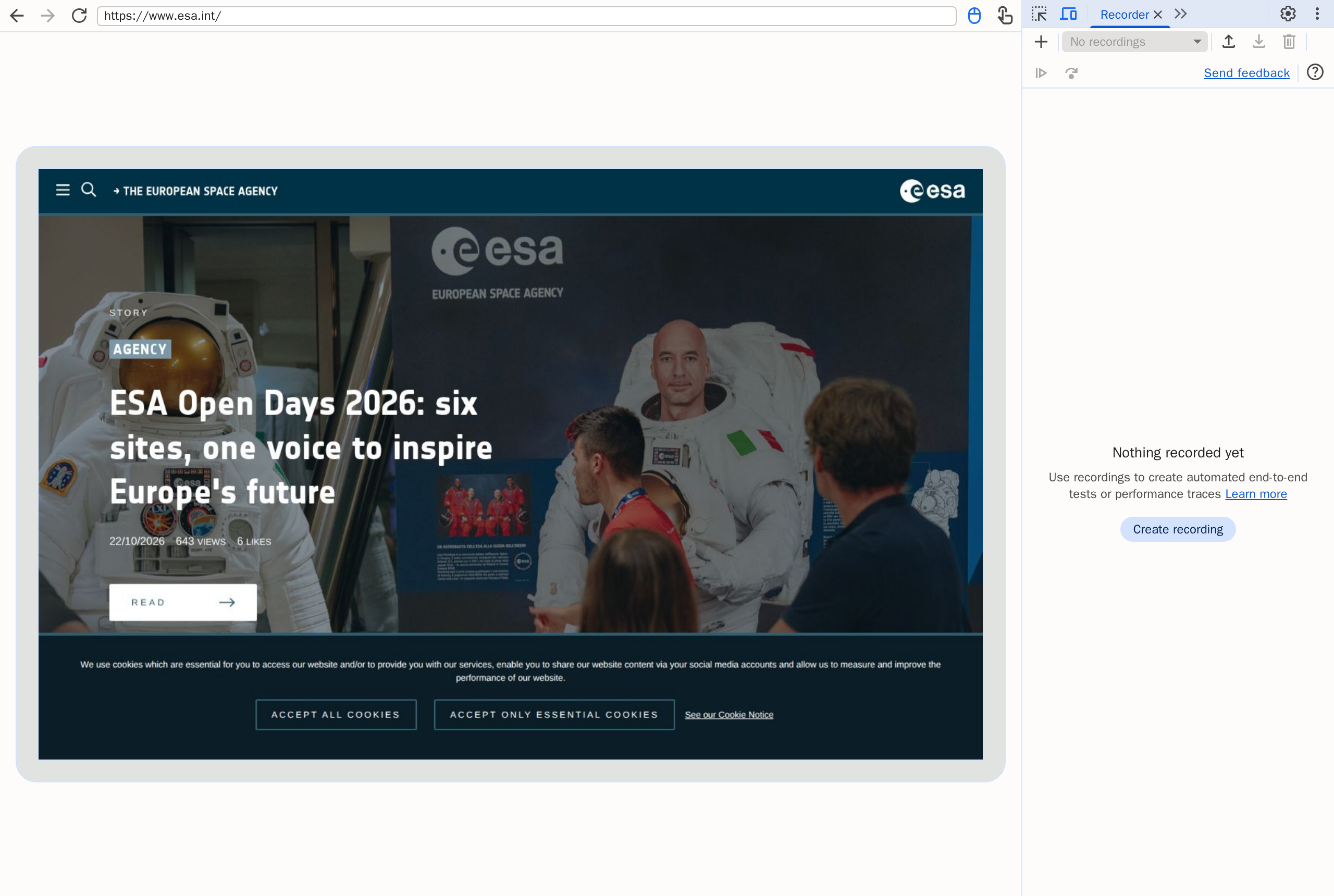
The quickest way to a journey is to click through the flow once in Chrome and let DevTools record it. This page records a search on www.esa.int: accept only the essential cookies, open the search, look for "Ariane 6". The recording is esa-search.json; download it to follow the import without recording one yourself. What a journey contains is described in Synthetic journeys.
1. Open the Recorder
Open the site in Chrome, open DevTools (F12, or Cmd+Option+I on macOS) and open the Recorder panel: ⋮ › More tools › Recorder, or type "Recorder" in the command menu (Ctrl+Shift+P). Open a new tab or a private window first, so cookies you already accepted do not leave steps out of the recording.
2. Record the flow
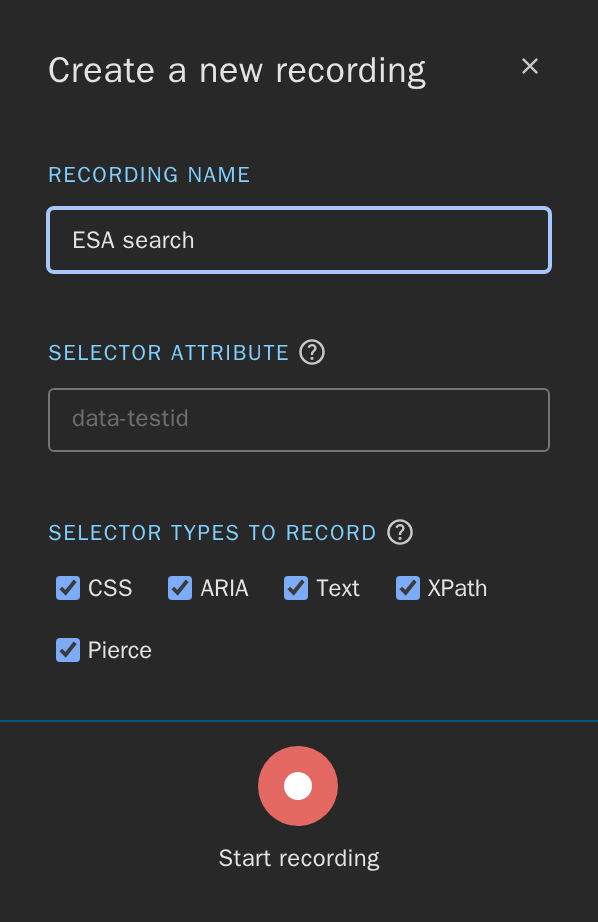
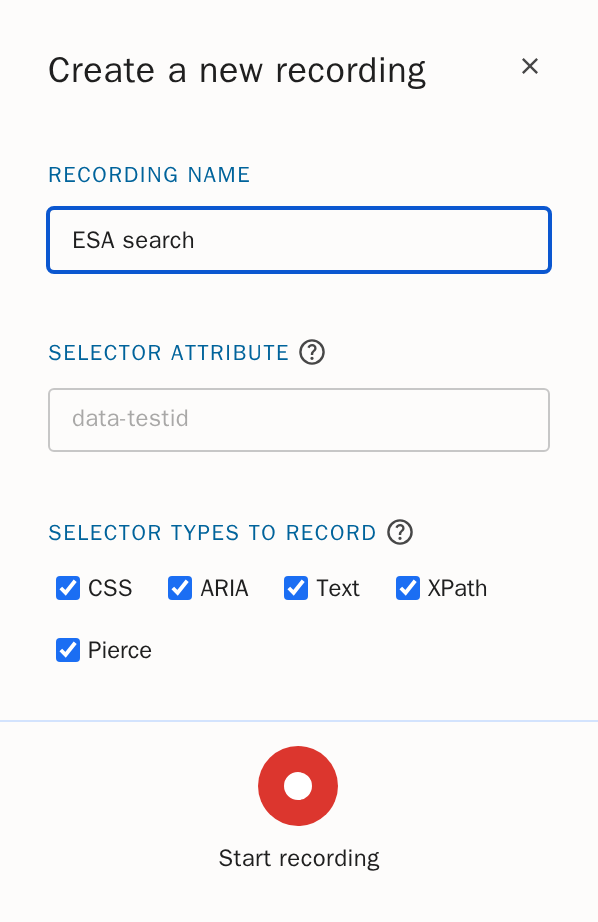
Create recording asks for a name ① and the selectors to record.
Leave the selector types as they are. If your own site marks elements
with a test attribute, enter it as Selector attribute ②
(data-testid, say): the importer then gets selectors that survive
layout changes. Start recording ③:
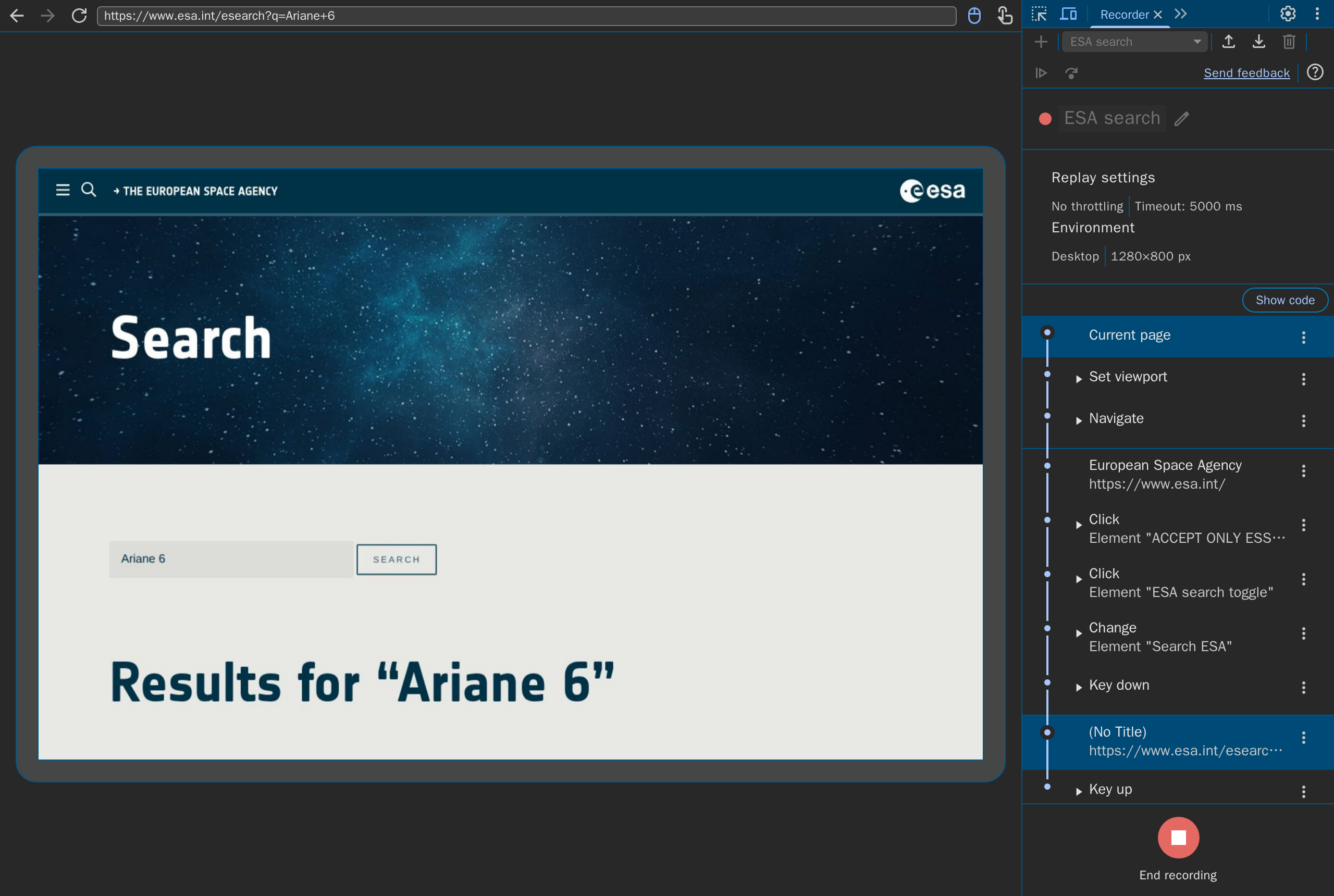
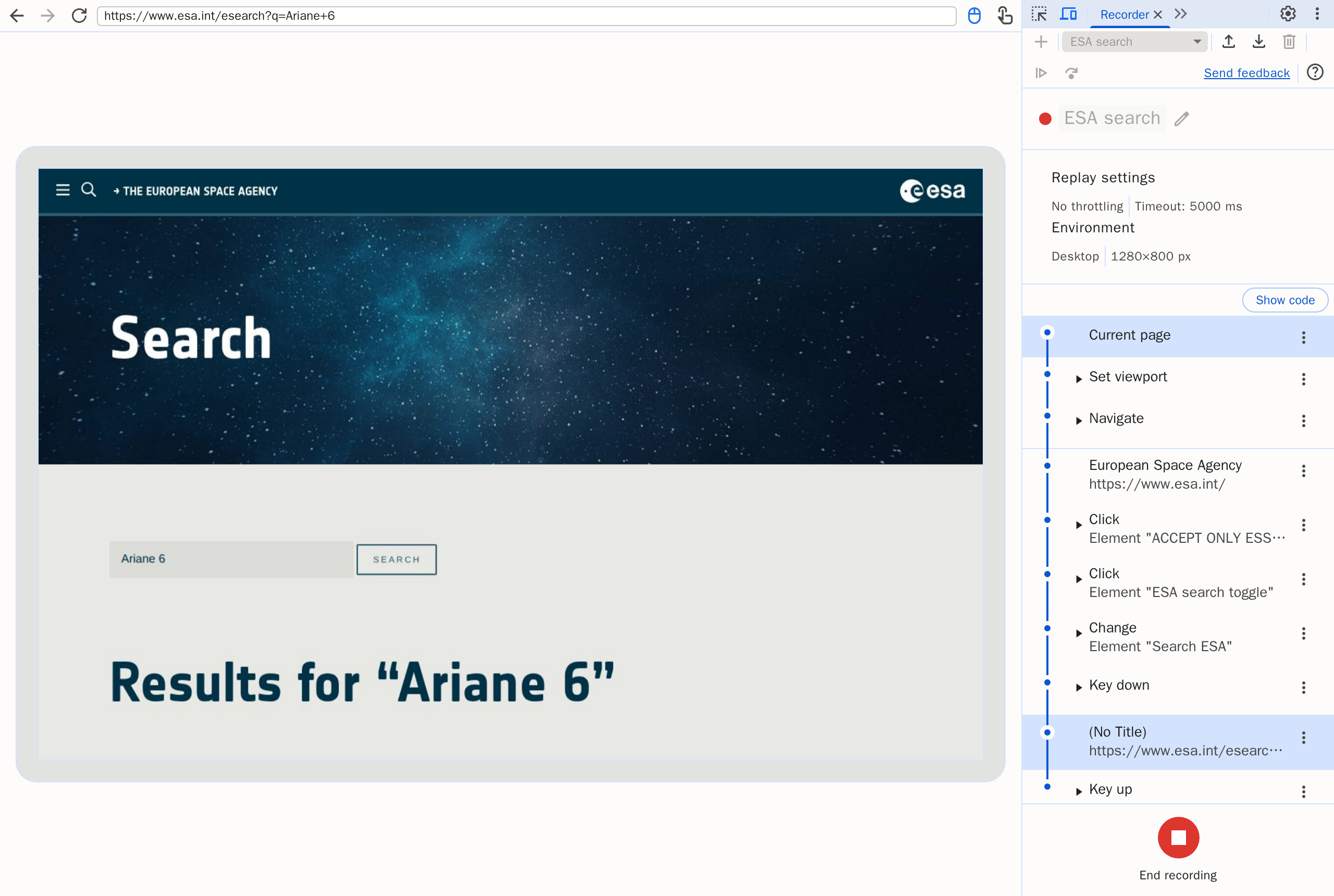
Now use the site as a visitor would: here Accept only essential cookies, the search icon, "Ariane 6" and Enter. Each action appears as a step in the panel. Keep the flow short and to the point of the journey: a journey answers one question, here "does the search answer". End recording ① when the page shows what the journey should prove:
3. Export the recording as JSON
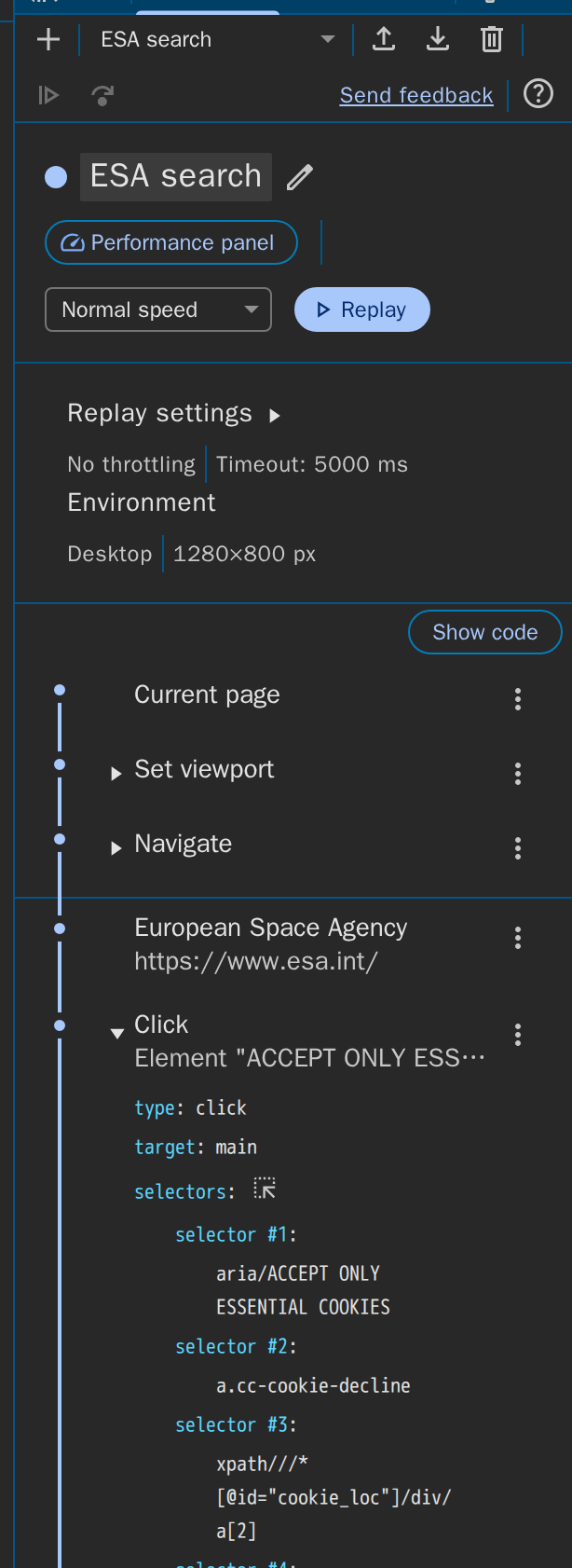
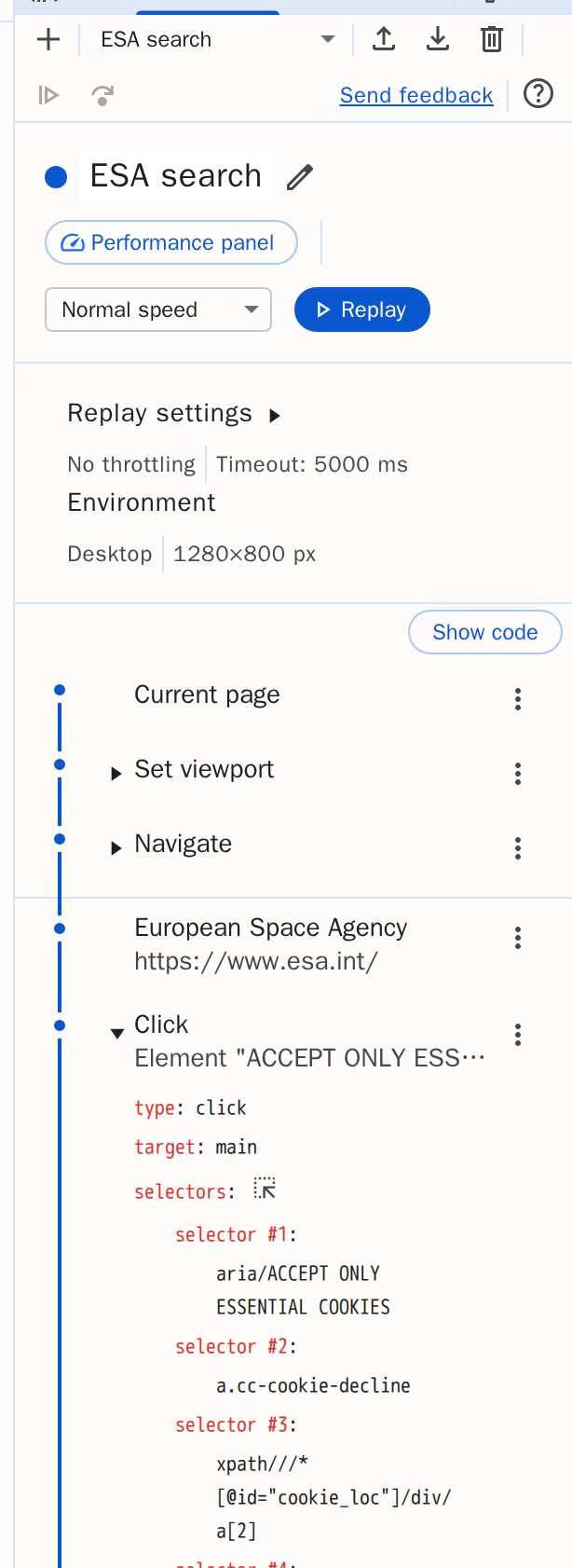
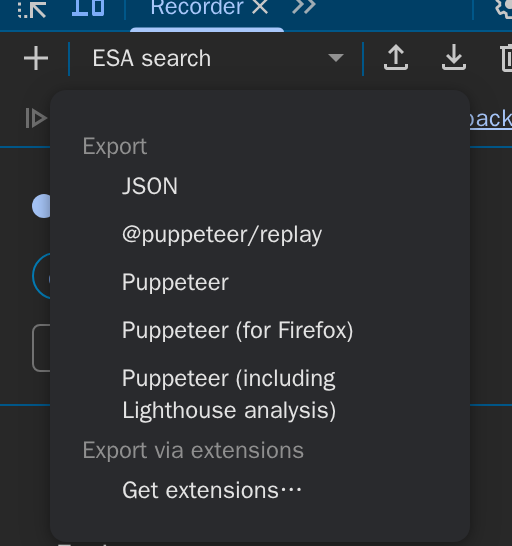
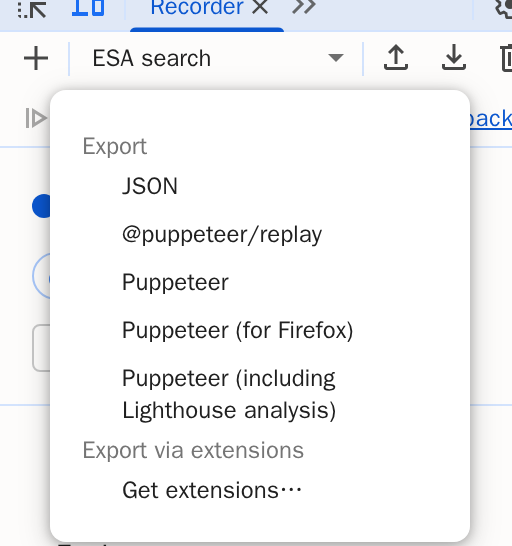
The panel lists the steps by page. Unfold a step to see the selectors recorded for its element ①: for the cookie button an ARIA selector (role and name), a CSS, an XPath and a text selector. The importer uses the ARIA one and keeps the others as a comment. Export ② saves the recording:
Choose JSON ①. The other formats are scripts for Puppeteer, which the importer does not read.
4. Import it
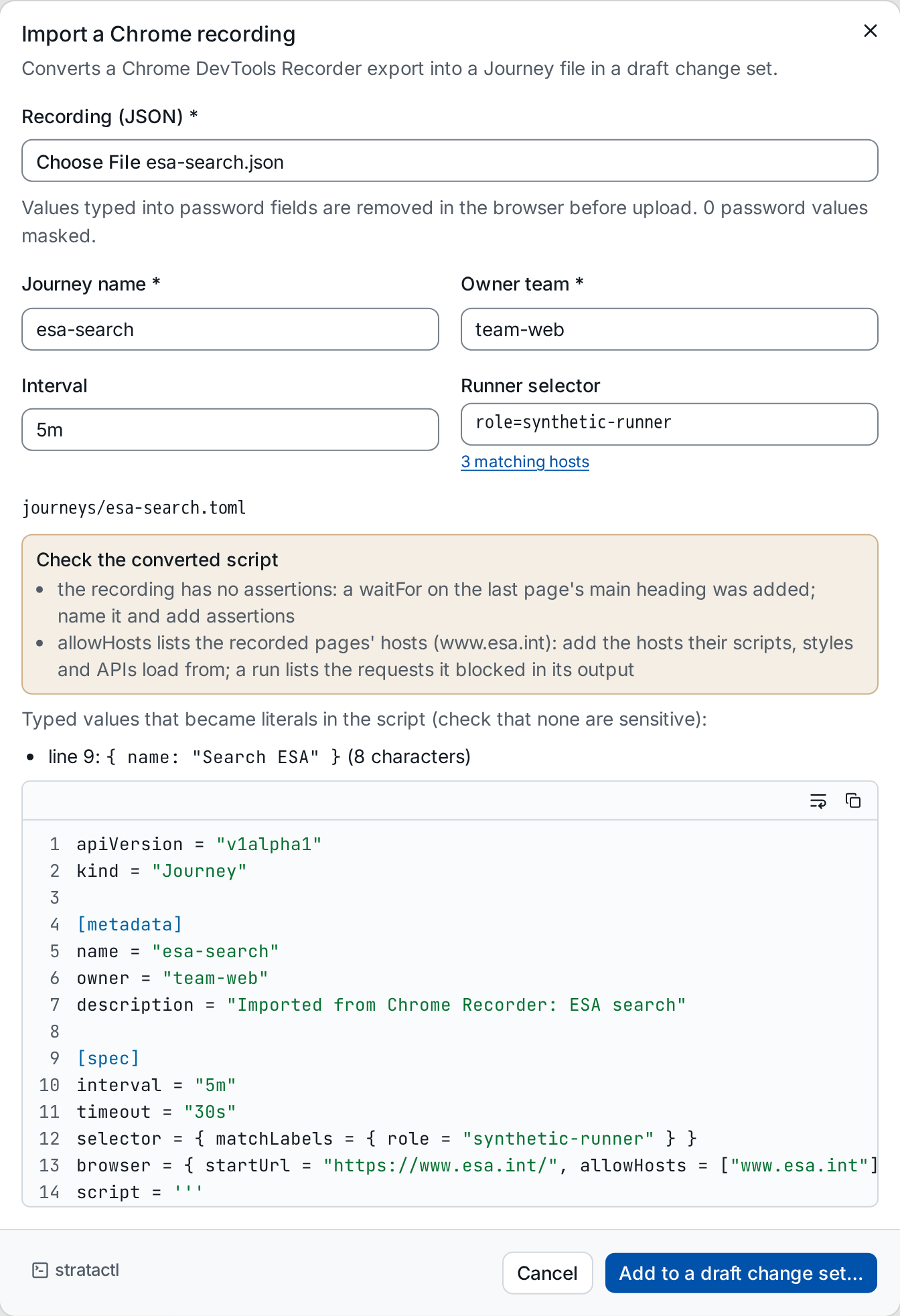
On the Journeys page, choose Import a Chrome recording. Pick the file, name the journey, set its owner team, interval and Runner selector, and Convert:
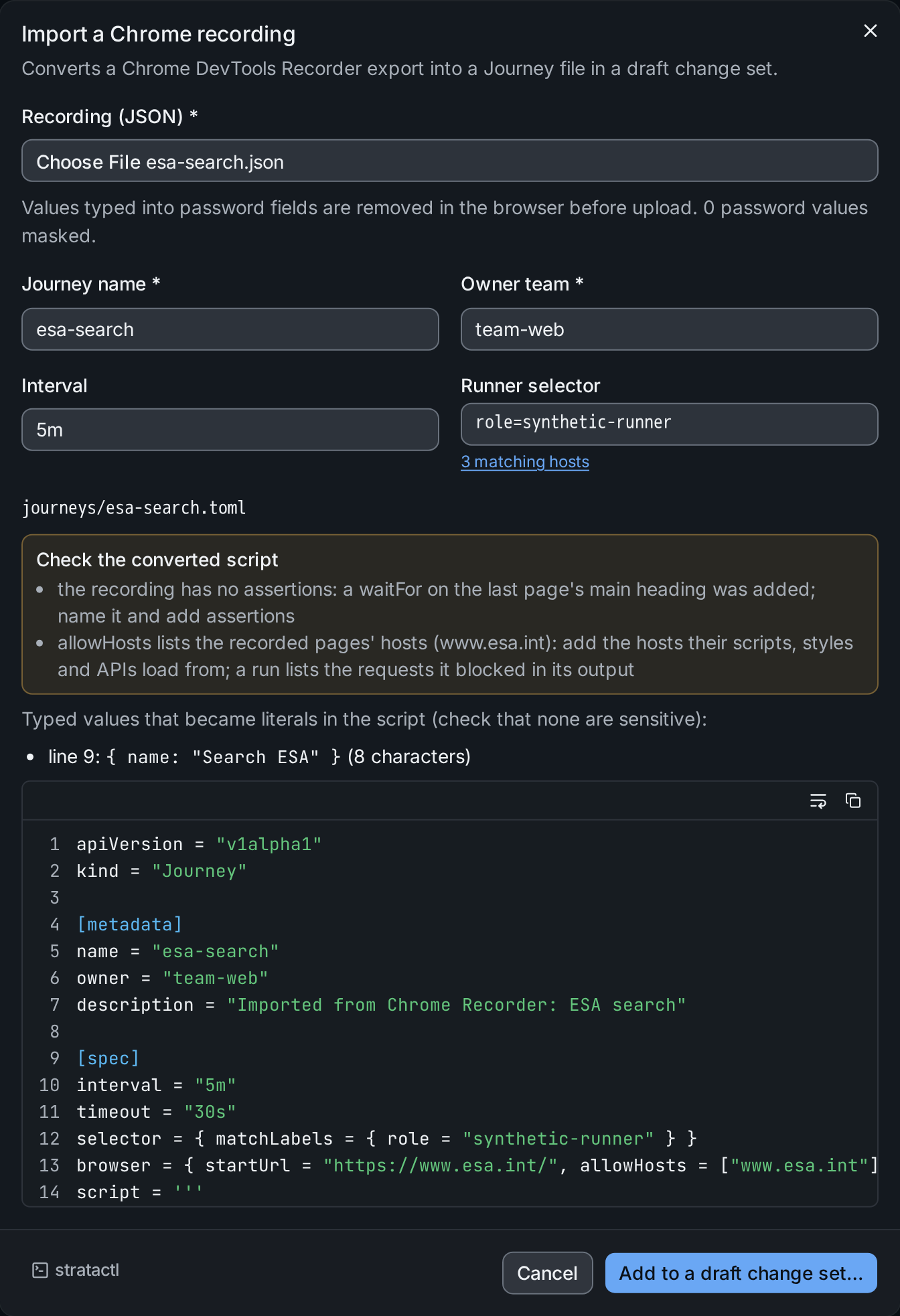
Values typed into password fields are removed in the browser before the
recording is uploaded; the server converts the rest and stores nothing.
Check the warnings ①: steps that were not converted, the waitFor the
importer adds because recordings contain no assertions, and the hosts the
page may need besides its own. Every other typed value ② becomes a
literal in the spec, so make sure none is sensitive; here it is the
search term. The conversion rules are in
Importing Chrome recordings.
With stratactl, the same conversion is journey import-chrome NAME FILE
into the working copy.
Add to a draft change set… ③ puts the Journey file into one of your drafts or a new one and opens it in the editor:
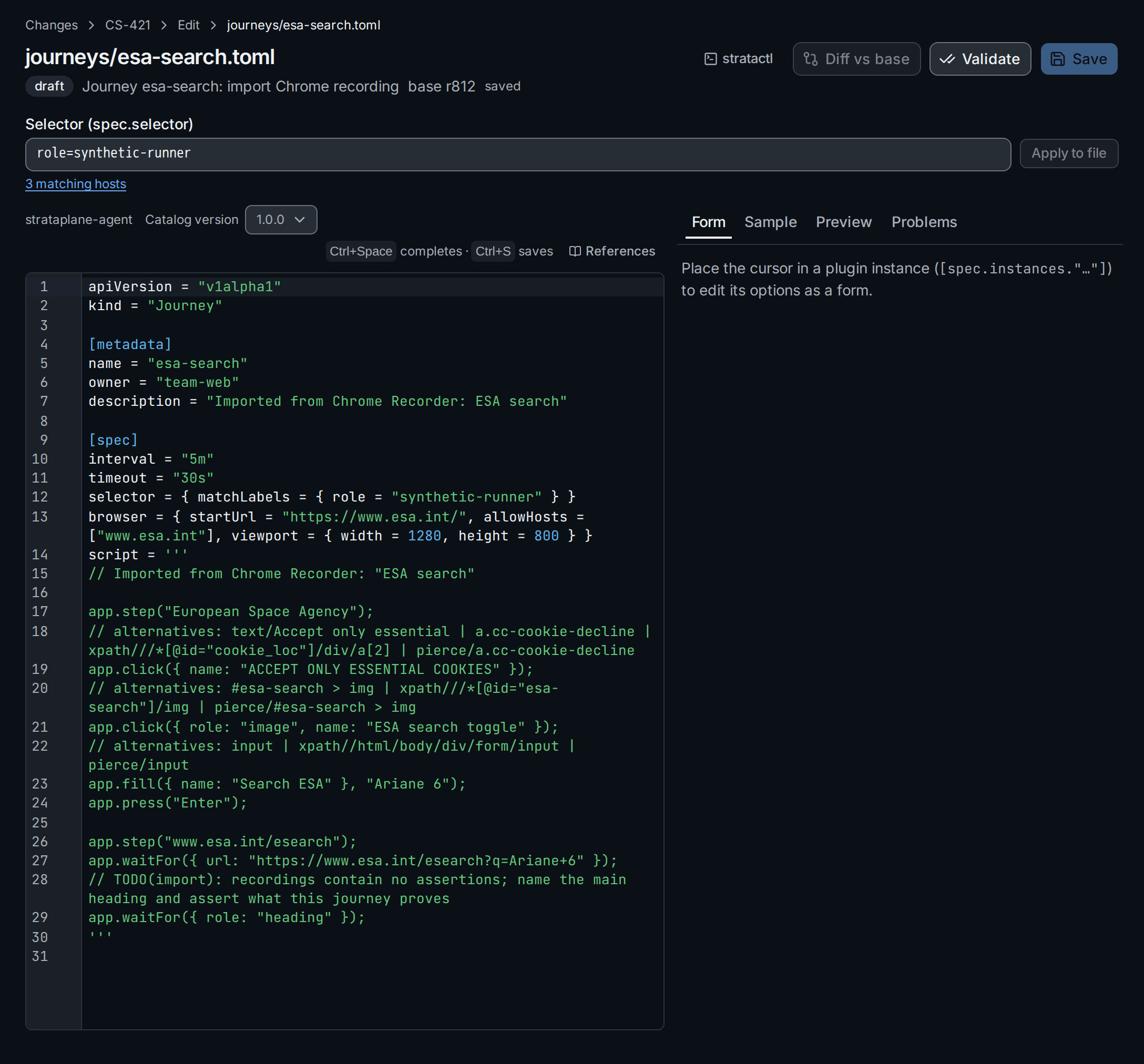
allowHosts with the site's own host, ② the waitFor the importer added.5. Try it before review
Run the journey once on your computer with the agent binary
(Local runs). Save the editor's
content as journeys/esa-search.toml, or convert the recording into a
working copy with stratactl journey import-chrome esa-search esa-search.json,
and run it:
strataplane-agent journey run journeys/esa-search.toml --out runs/esa-search
As imported, the journey fails at the first click:
esa-search: failed in 14963 ms (Chromium, timeout 30s)
  01 European Space Agency              10041 ms  failed (line 5): click: no visible element matches { name: "ACCEPT ONLY ESSENTIAL COOKIES" }
  02 www.esa.int/esearch                    0 ms  not run
click: no visible element matches { name: "ACCEPT ONLY ESSENTIAL COOKIES" }
--- output
host guard blocked requests to: code.jquery.com, www-analytics.esa.int
evidence: runs/esa-search
The output names the reason: the runner's host guard allows only the
hosts in allowHosts ①, and the site loads the script that shows its
cookie banner from code.jquery.com. Without it there is no banner to
click; runs/esa-search/01-european-space-agency.png shows the page as
the runner saw it. The analytics host can stay blocked: the journey does
not need it (host guard).
6. Finish the script
Make three changes, in the editor and in your local copy:
- add
code.jquery.comtoallowHosts①; - replace the
waitForthe importer added ② with what the journey proves: the results heading names the search term; - give the second step a name a person reads in an alert, instead of the page's address (the results page has no title).
The end of the script then reads:
app.step("Results");
app.waitFor({ url: "https://www.esa.int/esearch?q=Ariane+6" });
app.waitFor({ role: "heading", name: "Results for “Ariane 6”" });
and the browser line:
browser = { allowHosts = ["www.esa.int", "code.jquery.com"], startUrl = "https://www.esa.int/", viewport = { height = 800, width = 1280 } }
Run it again:
esa-search: passed in 1396 ms (Chromium, timeout 30s)
  01 European Space Agency                781 ms  passed
  02 Results                                4 ms  passed
--- output
host guard blocked requests to: www-analytics.esa.int
evidence: runs/esa-search
Save the file. From there it goes through validation, review and a rollout like any change (Change sets); once runners run it, its results appear on the Journeys page. Before review you can also try it at a runner's network position: Explore from this computer.